Skip to content

Instantly share code, notes, and snippets.

@Suzhou65
Last active March 17, 2026 15:00
Show Gist options
  • Select an option

  • Save Suzhou65/efc948c5341738d5eab7661cb2dc747e to your computer and use it in GitHub Desktop.

Select an option

Save Suzhou65/efc948c5341738d5eab7661cb2dc747e to your computer and use it in GitHub Desktop.
Raspberry Pi Setup APCUPSD

Raspberry Setup APC UPS

What is this?
Raspberry Pi OS (Raspbian) install apcupsd Installation guide

What is apcupsd?
apcupsd is a open source UPS mangement and controlling software, it allows the computer to interact with APC UPSes.

Install apcupsd

First, install apcupsd utility, and the dynamic web page monitor.

sudo apt-get -y install apcupsd apcupsd-cgi

Then backup the configuration file.

sudo cp /etc/apcupsd/apcupsd.conf /etc/apcupsd/apcupsd.orig
sudo cd /etc/apcupsd/

Using vim editor to editing the configuration file.

sudo vim apcupsd.conf

If you are using APC BN650M1 series, and connect to raspberry by USB cable, the configuration file will be like this:

## apcupsd.conf v1.1 ##
UPSNAME BN650M1-TW

# UPSCABLE <cable>
UPSCABLE usb

# UPSTYPE
UPSTYPE usb
DEVICE

# POLLTIME <int>
#POLLTIME 60

# LOCKFILE <path to lockfile>
LOCKFILE /var/lock

# SCRIPTDIR <path to script directory>
SCRIPTDIR /etc/apcupsd

# PWRFAILDIR <path to powerfail directory>
PWRFAILDIR /etc/apcupsd

# NOLOGINDIR <path to nologin directory>
NOLOGINDIR /etc

# During power failures
ONBATTERYDELAY 6
BATTERYLEVEL 15

MINUTES 10
TIMEOUT 0

ANNOY 60
ANNOYDELAY 60

# NOLOGON <string> [ disable | timeout | percent | minutes | always ]
NOLOGON disable
# KILLDELAY <seconds>  0 disables
KILLDELAY 0

# Network Information Server
# NETSERVER [ on | off ] on enables, off disables the network
NETSERVER on

# NISIP <dotted notation ip address>
NISIP 0.0.0.0

# NISPORT <port> IANA
NISPORT 3551

EVENTSFILE /var/log/apcupsd.events
EVENTSFILEMAX 10

# Configuration statements used if sharing
# UPSCLASS
UPSCLASS standalone

# UPSMODE
UPSMODE disable

After saving the configuration file, start (or restart) apcupsd service.

sudo service apcupsd start

Running commond, if everything goes right, you will saw the UPS status.

apcaccess

Install Apache

If you want to monitoring your UPS online (via LAN network), please follow the instructions below.

Install Apache 2.4.

sudo apt-get -y install apache2

Then backup the configuration file.

sudo cp /etc/apache2/apache2.conf /etc/apache2/apache2.orig
sudo cp /etc/apache2/sites-available/000-default.conf /etc/apache2/sites-available/000-default.orig

Using vim editor to editing the website configuration file.

sudo cd /etc/apache2/conf-available/
sudo touch apcupsd-cgi.conf
sudo vim apcupsd-cgi.conf

The configuration file section at apcupsd-cgi.conf will be like this:

# apcupsd-cgi
ScriptAlias /apcupsd/ /usr/lib/cgi-bin/apcupsd/
<Directory "/usr/lib/cgi-bin/apcupsd">
	DirectoryIndex multimon.cgi
	Options +FollowSymLinks +ExecCGI
	AddHandler cgi-script .cgi
	DirectoryIndex upsstats.cgi
	Require all granted
</Directory>

Enable the CGI module and CGI config

sudo a2enconf apcupsd-cgi
sudo a2enmod cgi

After saving the configuration file, running configtest to check syntax errors, if everything goes right, you will saw Syntax OK

pi@raspberry:/etc/apache2 $ sudo apache2ctl configtest
Syntax OK

If you saw this error, please follow the instructions below.

pi@raspberry:/etc/apache2 $ sudo apache2ctl configtest
apache2: Could not reliably determine the server's fully qualified domain name, using 127.0.1.1 for ServerName
Syntax OK

Go back to apache configuration file.

sudo cd /etc/apache2/
sudo vim apache2.conf

Add this section

ServerName localhost

After saving the configuration file, start (or restart) apcupsd service.

sudo service apache2 start
sudo service apache2 reload

Now you can check the CGI monitor

http://your.server.address/apcupsd/
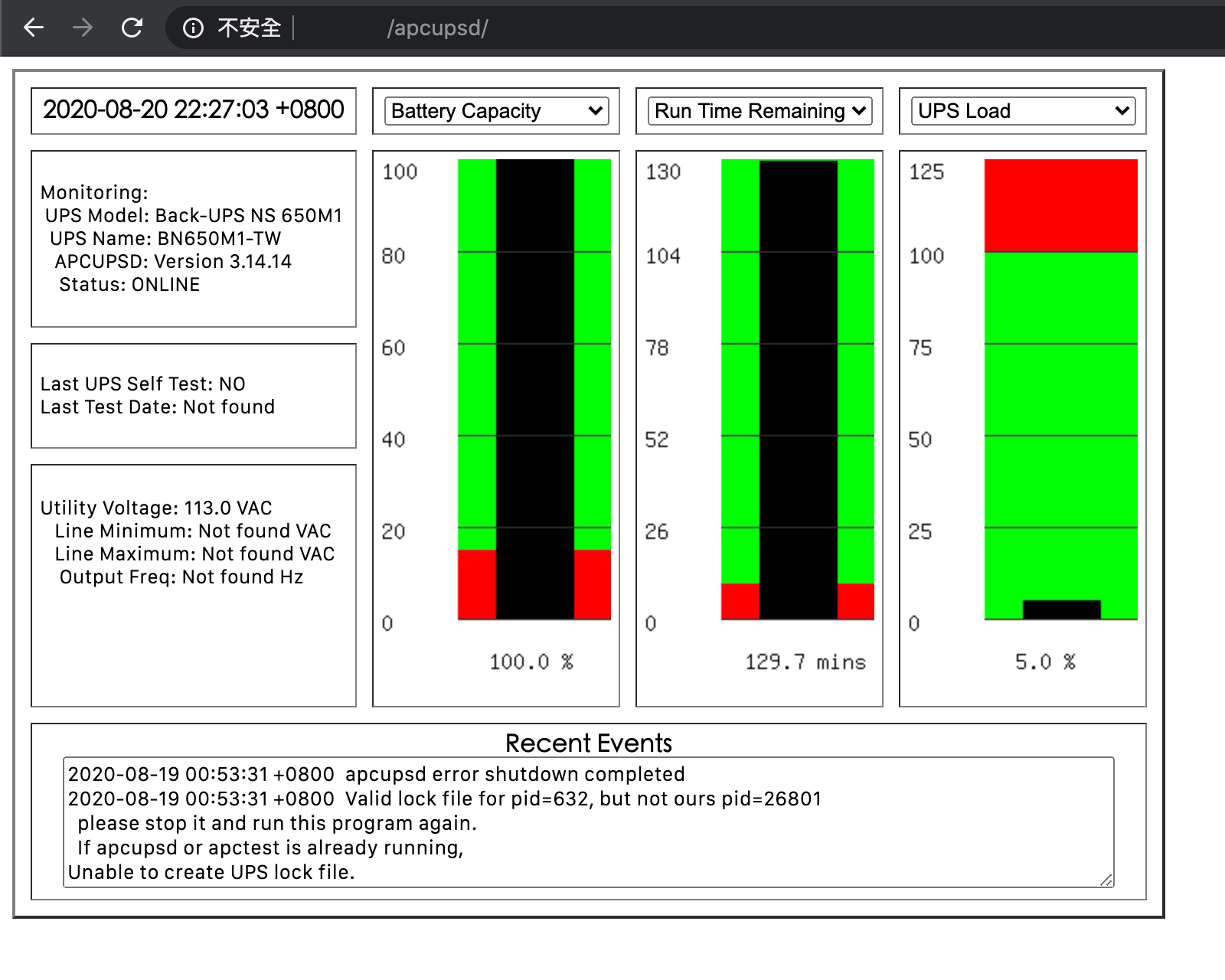
ScreenShot

Tips

If you have multi-APC UPSes which can broadcasting data, then you can choice multimon function into index as default.

Please modify the section below

DirectoryIndex upsstats.cgi

into

DirectoryIndex multimon.cgi

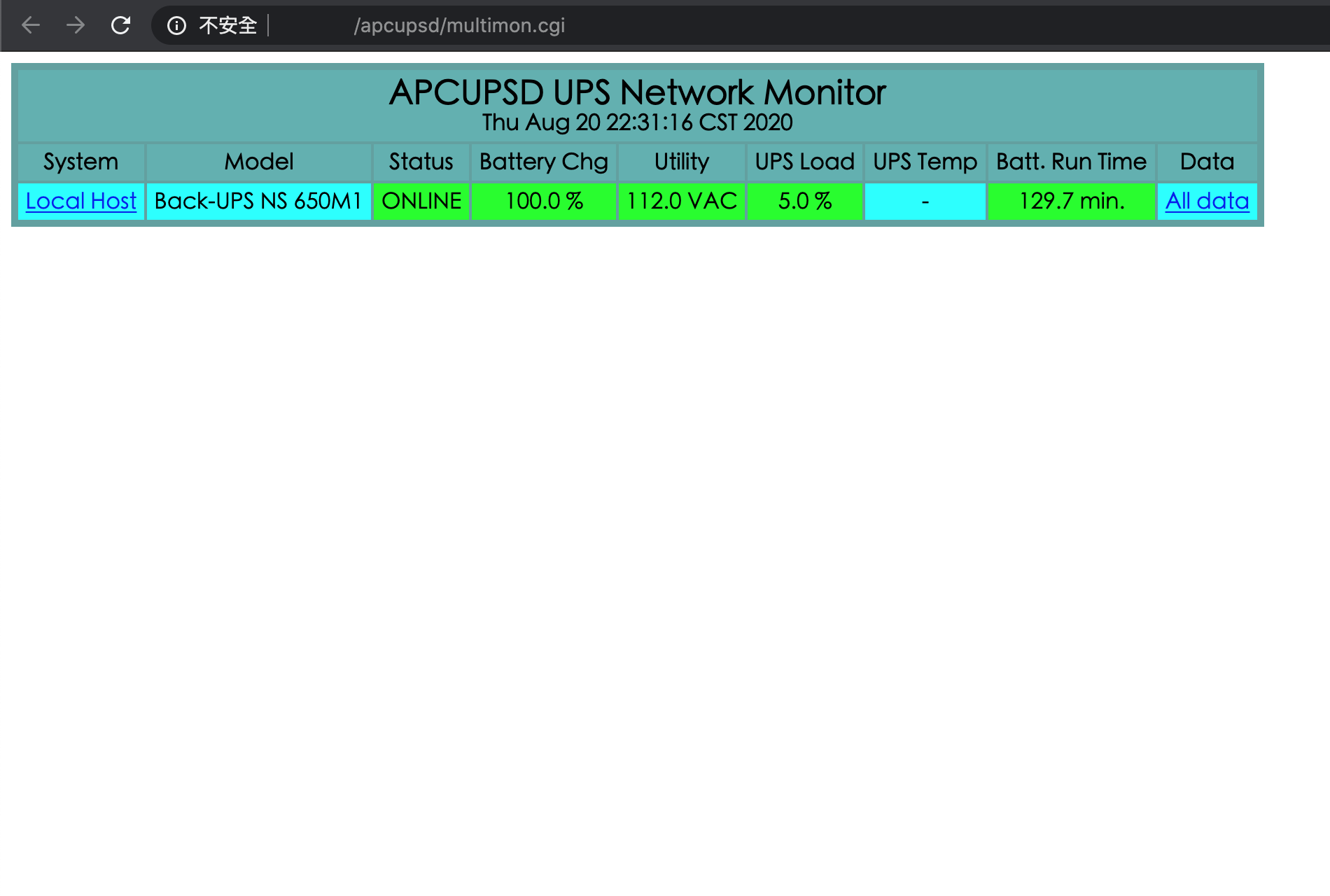
The multimon.cgi will be like this ScreenShot

You can also modify the apache default index page, let you easier to access different function. ScreenShot
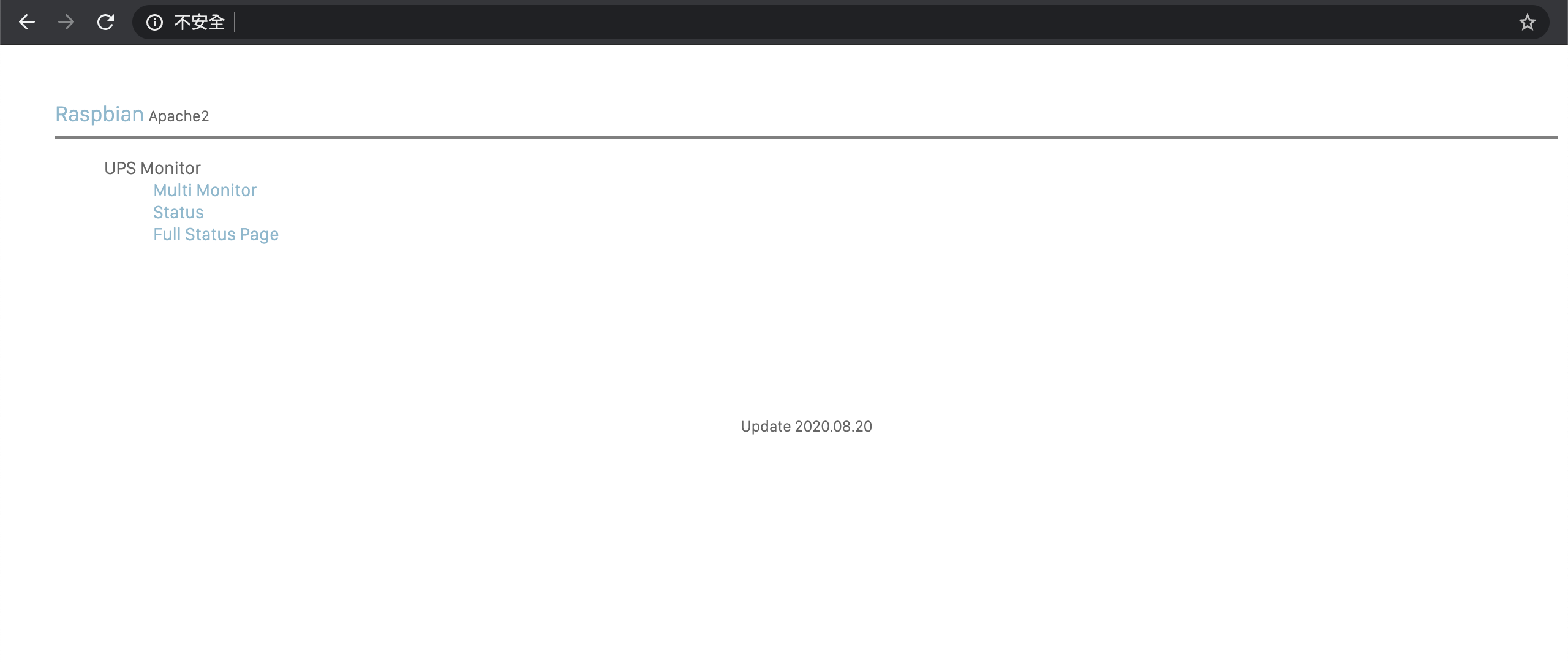
If apache server default folder (/var/www/html) show Permission denied alert, using the command below

sudo chown -R $USER:$USER /var/www
@soharddbwarez
Copy link
Copy Markdown

So after following the instructions, getting the predicted error messages and doing the extra changes and doing the apache2 installation and configurations I've got it all running without a problem.

I'm really happy with it because I have no other use for the UPS, my PC overloads the UPS without even breaking a sweat so after testing it initially I put it aside until I got the idea to use it for my Raspberry Pi with the display and I also put my modem on the same UPS which is very handy since I use my Raspberry Pi as my local DNS server with Pi-Hole which is an adblocker on DNS level capable of blocking even Google tracking stuff and analytics, it works very well.

So for who's interested in how I got my UPS working on the first time after going through the instructions above, I made a few extra changes to the config file that aren't covered in the instructions so this maybe help you if you don't get it working.

First I made the custom USB cable as I explained in my previous comment above and checked if it worked on my PC to make sure the UPS was working and it did, then I started reading the awesome instructions that I found by chance, can't find it anymore if I do the search on Google again so I'm glad I saved it in my favorites.

Here's how my config file looks:

UPSNAME APCUPS
UPSCABLE usb
UPSTYPE usb
DEVICE 
POLLTIME 60
LOCKFILE /var/lock
SCRIPTDIR /etc/apcupsd
PWRFAILDIR /etc/apcupsd
NOLOGINDIR /etc
ONBATTERYDELAY 6
BATTERYLEVEL 5
MINUTES 3
TIMEOUT 0
ANNOY 300
ANNOYDELAY 60
NOLOGON disable
KILLDELAY 0
NETSERVER on
NISIP 127.0.0.1
NISPORT 3551
EVENTSFILE /var/log/apcupsd.events
EVENTSFILEMAX 10
UPSCLASS standalone
UPSMODE disable
STATTIME 3600
STATFILE /var/log/apcupsd.status
LOGSTATS off
DATATIME 3600
FACILITY DAEMON
UPSNAME APCUPS
BATTDATE 01/01/22
SENSITIVITY H
WAKEUP 060
SLEEP 180
LOTRANSFER  208
HITRANSFER 253
RETURNCHARGE 15
BEEPSTATE T
LOWBATT 02
OUTPUTVOLTS 230
SELFTEST 336

Using the following command to check my USB devices:
pi@raspberrypi:~ $ lsusb

Giving me the following result:

Bus 001 Device 006: ID 051d:0002 American Power Conversion Uninterruptible Power Supply
Bus 001 Device 004: ID 046d:08da Logitech, Inc. QuickCam Messanger
Bus 001 Device 005: ID 0c45:8101 Microdia 
Bus 001 Device 007: ID 0424:7800 Standard Microsystems Corp. 
Bus 001 Device 003: ID 0424:2514 Standard Microsystems Corp. USB 2.0 Hub
Bus 001 Device 002: ID 0424:2514 Standard Microsystems Corp. USB 2.0 Hub
Bus 001 Device 001: ID 1d6b:0002 Linux Foundation 2.0 root hub

Checking the systemctl status of the UPS:

pi@raspberrypi:~ $ sudo systemctl status apcupsd
● apcupsd.service - UPS power management daemon
   Loaded: loaded (/lib/systemd/system/apcupsd.service; enabled; vendor preset: enabled)
   Active: active (running) since Fri 2022-03-04 04:56:05 CET; 8h ago
     Docs: man:apcupsd(8)
  Process: 627 ExecStartPre=/lib/apcupsd/prestart (code=exited, status=0/SUCCESS)
  Process: 638 ExecStart=/sbin/apcupsd (code=exited, status=0/SUCCESS)
 Main PID: 653 (apcupsd)
    Tasks: 3 (limit: 2088)
   CGroup: /system.slice/apcupsd.service
           └─653 /sbin/apcupsd

Mar 04 12:59:07 raspberrypi apcupsd[653]: 000.0,000.0,230.0,13.59,50.00,12.0,29.2,000.0,000.0,234.0,100.0,1
Warning: Journal has been rotated since unit was started. Log output is incomplete or unavailable.

I did get a warning but I don't think that's a problem so I'll just leave it as is.

Then I checked the apcaccess:

pi@raspberrypi:~ $ apcaccess
APC      : 001,045,1049
DATE     : 2022-03-04 12:58:06 +0100  
HOSTNAME : raspberrypi
VERSION  : 3.14.14 (31 May 2016) debian
UPSNAME  : APCUPS
CABLE    : USB Cable
DRIVER   : USB UPS Driver
UPSMODE  : Stand Alone
STARTTIME: 2022-03-04 04:56:05 +0100  
MODEL    : Back-UPS CS 350 
STATUS   : ONLINE 
LINEV    : 234.0 Volts
LOADPCT  : 12.0 Percent
BCHARGE  : 100.0 Percent
TIMELEFT : 21.2 Minutes
MBATTCHG : 5 Percent
MINTIMEL : 3 Minutes
MAXTIME  : 0 Seconds
OUTPUTV  : 230.0 Volts
SENSE    : High
DWAKE    : 0 Seconds
DSHUTD   : 0 Seconds
LOTRANS  : 196.0 Volts
HITRANS  : 266.0 Volts
RETPCT   : 0.0 Percent
ITEMP    : 29.2 C
ALARMDEL : 30 Seconds
BATTV    : 13.6 Volts
LINEFREQ : 50.0 Hz
LASTXFER : No transfers since turnon
NUMXFERS : 0
TONBATT  : 0 Seconds
CUMONBATT: 0 Seconds
XOFFBATT : N/A
SELFTEST : NO
STESTI   : None
STATFLAG : 0x05000008
MANDATE  : 2009-04-02
SERIALNO : 4B0914P17694  
BATTDATE : 2021-05-12
NOMOUTV  : 230 Volts
NOMINV   : 230 Volts
NOMBATTV : 12.0 Volts
NOMPOWER : 210 Watts
FIRMWARE : 807.q8.I USB FW:q8
END APC  : 2022-03-04 12:58:27 +0100

I did have to restart the Raspberry Pi twice to get it all working though, once after the first install from the first part of the instructions and once after I set up the apache2 server to get the website working correctly.

And here's how it looks from my main PC when I use the IP address of my Raspberry Pi like this:
http://192.168.1.70/apcupsd/upsstats.cgi
Note that I had to add the upsstats.cgi to the URL to get it working.

Capture

I hope this is helpful.

@soharddbwarez
Copy link
Copy Markdown

Update to my last comment

So with the last installation everything worked out, however it did break something else that I was running on my Raspberry Pi which was using the apache2 service also and after adding this something changed that I'm not aware of that broke the Pi-hole program.

Not a big deal really because it is not necessary and I might get it working again later.

More important that I wanted to mention is that I started over new with a clean OS but now I have the latest version of Raspberry Pi OS which is the x64 version, it even runs flawless on my older Raspberry Pi 3B+ with only 1GB of memory and I didn't know if this is going to work on the new 64-bit OS but to my surprise it's exactly the same to install APCUPS on the new 64-bit OS.

So for those who want to get APCUPS working on Raspberry Pi OS x64, just use the instructions above I can assure you that it works.

@carlsmoore
Copy link
Copy Markdown

@soharddbwarez Maybe you can advise here. I've been running the APCUPS successfully for awhile now on my RPi4. Lately I've been getting these messages. How do I fix this?
Screenshot 2024-02-14 at 7 57 24 PM

@lochstar
Copy link
Copy Markdown

Got this working with my APS Easy UPS On-Line - SRV1KRIRK

UPSCABLE usb
UPSTYPE apcsmart
DEVICE /dev/ttyUSB0

@Suzhou65
Copy link
Copy Markdown
Author

Suzhou65 commented Mar 16, 2026

Hi guys, this is author update:

I have switch into Network UPS Tools (NUT) since 2025 Nov, switching reason is apcupsd configuration with multi-ups is kind pain in the a*s.

However, before remove APCUPSD and it's CGI application, I made a last testing run, verified that you only need to create apcupsd-cgi.conf under /etc/apache2/conf-available/, then using a2enconf apcupsd-cgi to active configuration, a2enmod cgi to active CGI, that is it, if your APCUPSD configuration is correct, apcupsd-cgi will work perfectly.

Also, for reader who facing APCUPSD connect issue, the solution provided by lochstar also applicable to NUT, most likely some of the APC UPS with USB-B to USB-A cable is running at APCsmart protocol by default (God knows how this works.... my guess is those cable including URAT-USB bridge chip.

So, your APCUPSD won't recognize APCUPS while config at USB mode, please change UPSTYPE value into apcsmart, and using:

ls -1 /dev

listing all device, find the /dev/ttyUSB ones, fit into DEVICE , this will mostly fix it.

Sign up for free to join this conversation on GitHub. Already have an account? Sign in to comment