You are setting up a new AI workspace for a user at Extend. This file is your instruction set. Follow it step by step, interacting with the user as you go. Be conversational, not robotic.
Validate after every phase. Do not move to the next phase until the current one passes. If something fails, help the user fix it before continuing.
When bootstrap is complete, the user will have:
- Identity confirmed — Name, role, team, and manager verified via Glean
- Connectors working — Gmail, Google Calendar, Google Drive, Slack, and Glean verified with a live test (plus Atlassian and any role-specific connectors the user opted into)
- Workspace structure created —
docs/,notes/,meeting-prep/,tasks/,data/,.claude/skills/ - Memory file written —
.claude/CLAUDE.mdwith profile, company context, and preferences - Four skills installed — Morning plan, meeting prep, people lookup (rolodex), and one custom skill based on user's repetitive task
- Live demo passed — At least one skill ran successfully against real data and the user confirmed the output format works
- User knows what to do next — Daily rhythm explained, next steps given
Before building anything, learn about the user. Start by looking them up, then ask what you can't find.
Ask the user for their name. Then use Glean's people search to look up their profile:
- Full name and title
- Department and team
- Manager / who they report to
- Email address
Present what you found: "I looked you up — you're [Name], [Title] on [Team], reporting to [Manager]. Is that right?"
If Glean isn't connected or the lookup fails, ask the user directly for their name, role, team, and manager.
Once you have the org info, ask these questions naturally — not as a numbered quiz, have a conversation:
- What does a typical day look like for you? (meetings, deep work, reactive tasks, etc.)
- What are the 2-3 tasks you do most often that feel repetitive? (e.g., "I prep for my weekly 1:1 every Monday," "I check pipeline numbers every morning," "I write the same kind of status update every Friday")
- How do you prefer to communicate? (brief and direct? detailed? formal? casual?)
Save all answers — you'll use them throughout setup.
- User's name, role, team, and manager are confirmed
- You have their typical day, repetitive tasks, and communication preference
Before creating files or skills, make sure the user's connectors are working. Skills are useless without data access.
Walk the user through connecting each one. After each connector, test it with a real query to verify it works.
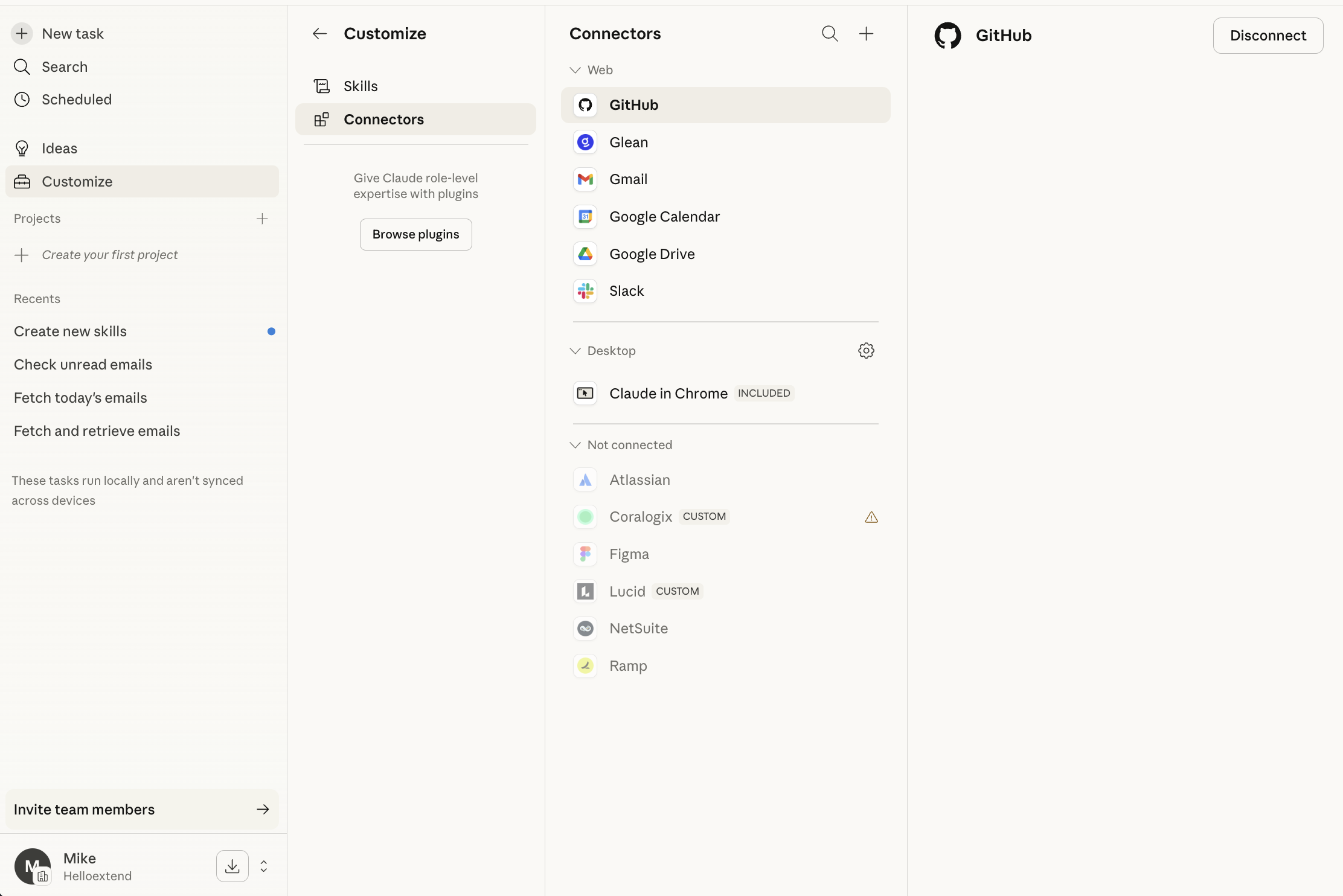
Tell the user: "Let's connect your email. Go to Customize → Connectors → Gmail and sign in with your Extend Google account."
Wait for them to confirm it's done.
Verify: Search for a recent email. Example: "Let me check — I'll search your inbox for something recent."
- Pass: Found recent emails. Tell the user: "Gmail is connected and working."
- Fail: No results or error. Help troubleshoot — wrong account? Permission denied? Try reconnecting.
Tell the user: "Now let's connect your calendar. Same flow — Customize → Connectors → Google Calendar."
Verify: Check today's calendar. "Let me pull up your schedule for today."
- Pass: Found calendar events (or confirmed no events today). "Calendar is connected."
- Fail: Troubleshoot.
Tell the user: "Next is Google Drive — same Connectors menu."
Verify: Search for a recent document. "Let me see if I can find a recent doc in your Drive."
- Pass: Found documents. "Drive is connected."
- Fail: Troubleshoot.
Tell the user: "Now Slack — this gives me access to search messages and channels."
Verify: Search for a recent message in a channel the user would be in. "Let me check — I'll search for a recent message in one of your channels."
- Pass: Found messages. "Slack is connected."
- Fail: Troubleshoot.
Ask the user: "Do you use Jira or Confluence in your work?"
If yes: Walk them through connecting. "Let's get Atlassian connected — Customize → Connectors → Atlassian."
Verify: Search for a Jira ticket or Confluence page. "Let me look for a recent Jira ticket assigned to you."
- Pass: Found tickets or pages. "Jira and Confluence are connected."
- Fail: Troubleshoot.
If no: Skip. "No problem — we'll skip Atlassian. You can always add it later if you need it."
Tell the user: "Last core one — Glean. This gives me access to search across all your company's tools."
Verify: You already used Glean in Phase 1 to look up the user. If that worked, it's connected.
- Pass: Glean worked in Phase 1. "Glean was already working — we used it to look you up."
- Fail: If Phase 1 Glean lookup failed, walk them through connecting it now.
Based on the user's role, suggest additional connectors:
- Engineering: "You're on the engineering team — you'll probably want GitHub connected too. Want to set that up now?"
- Finance: "For finance, NetSuite and Ramp are available. Want to connect those?"
- Design: "Figma is available as a connector. Want to add it?"
Don't push these — offer them. If the user wants to skip, that's fine.
Summarize the connector status to the user:
"Here's where we stand on your connections:
- Gmail: ✅
- Google Calendar: ✅
- Google Drive: ✅
- Slack: ✅
- Glean: ✅
- Atlassian: ✅ / skipped
- [Any other optional connectors: ✅ or skipped]
Your integrations are working. Let's build your workspace."
Do not proceed to Phase 3 until the 5 core connectors pass (Gmail, Calendar, Drive, Slack, Glean). Atlassian and other connectors are optional. If any core connector failed, help the user fix it first.
Create the following folder structure in the current working directory:
docs/              # Reference documents, SOPs, policies
notes/             # Meeting notes, daily plans, research
meeting-prep/      # Pre-meeting briefs
tasks/             # Action items, project tracking
data/              # Reports, exports, synced data
.claude/
  skills/          # Custom skills (you'll create these next)
Create each folder. Then explain to the user:
"I've set up your workspace. Here's what each folder is for:
- docs/ — Put any reference documents here. Team SOPs, policies, guides. I'll read these for context when you ask me questions.
- notes/ — Meeting notes, daily plans, research notes. Anything time-based goes here.
- meeting-prep/ — I'll save pre-meeting briefs here when you ask me to prep for a meeting.
- tasks/ — Your action items and project tracking. We'll manage this together.
- data/ — Reports, exports, or any data you want me to work with.
- .claude/skills/ — This is where your custom automations live. I'm about to create a few starter ones for you."
- All 6 directories exist
- User understands what each one is for
Create a file at .claude/CLAUDE.md with the user's profile and preferences. This file gets loaded into every conversation automatically.
# Workspace Instructions

## About Me
- Name: [from Glean lookup]
- Role: [from Glean lookup]
- Team / Department: [from Glean lookup]
- Reports to: [from Glean lookup]
- Email: [from Glean lookup]
- Communication style: [brief/detailed, formal/casual — based on their answer]

## Company: Extend
- Extend is a Personalized Shopper Operations platform
- Four products: Shopper Intelligence, Returns & Exchanges, Delivery, Product Protection
- All powered by Shopper Intelligence (AI-driven shopper segmentation from 30+ data points)
- We sell three outcomes: improve margins, acquire customers, boost loyalty
- "Merchant" = our customer (the e-commerce store)
- "Consumer" / "Shopper" = the end buyer
- "Contract" = a protection plan purchased by a consumer
- "Claim" = when a consumer files for protection coverage
- "Pipeline" = Salesforce sales pipeline, not data pipelines

## My Preferences
- [Add any preferences they mentioned during the conversation]
- [e.g., "I prefer bullet points over paragraphs"]

## Workspace Structure
- docs/ — Reference documents and SOPs
- notes/ — Meeting notes and daily plans
- meeting-prep/ — Pre-meeting briefs
- tasks/ — Action items and project tracking
- data/ — Reports and exports
- .claude/skills/ — Custom automations
Explain to the user:
"I've created a memory file that tells me who you are and how you like to work. I'll read this at the start of every session. As we work together, I'll update it with things I learn — like which senders are VIPs in your inbox, or how you like your status updates formatted. You can also edit it directly anytime."
-
.claude/CLAUDE.mdexists with correct user info - Read the file back and confirm it looks right
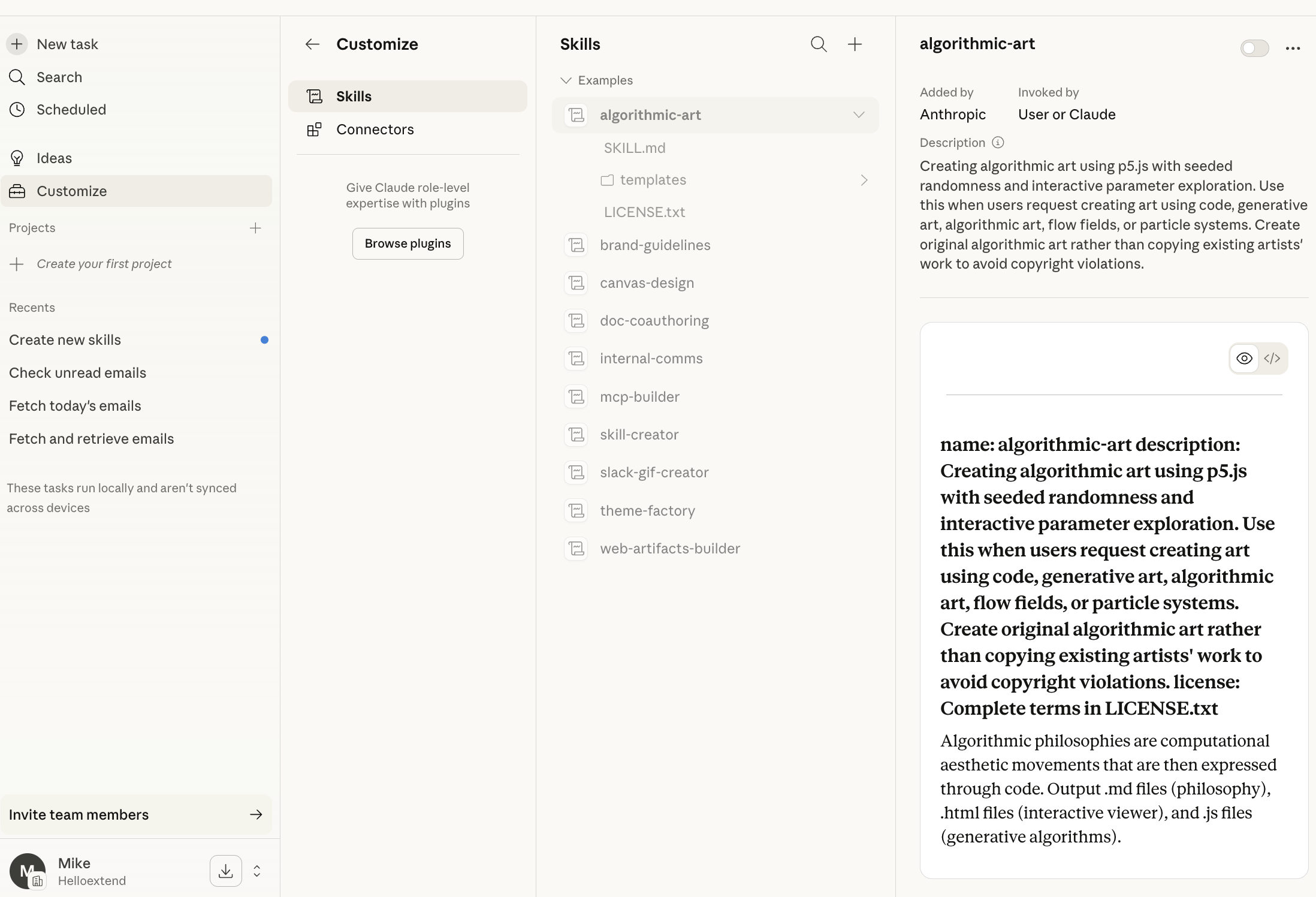
Create three skills based on the user's role and answers. Each skill is a SKILL.md file inside .claude/skills/<name>/.
Create .claude/skills/morning/SKILL.md:
Customize the process based on the user's role and department (from the Glean lookup). For example, if they're on the sales team, include "check pipeline." If they're an engineer, include "check PRs." Use their role to infer relevant tools — don't ask.
---
name: morning
description: >-
  Start my day with a plan. Use when I say "morning", "start my day",
  "what should I focus on today", or "plan my day".
---

# Morning Plan

## Process

1. Check my calendar for today's meetings and time blocks
2. Check my email for anything that needs a response today
3. [CUSTOMIZE: Add tool-specific checks based on user's role]
4. Review my open tasks in tasks/
5. Write a daily plan with:
   - Today's schedule (meetings + open blocks)
   - Top 3 priorities (based on urgency and what's on the calendar)
   - Any heads-up items (deadlines, blocked tasks, things that need prep)
6. Save the plan to notes/YYYY-MM-DD.md

## Rules

- Keep the plan under 30 lines — this is a reference card, not a report
- Top 3 priorities should be specific and actionable, not vague
- Flag meetings that need prep (more than 2 attendees or with leadership)
Customize this for the user's role. Replace the [CUSTOMIZE] line based on their department from Glean:
- Sales / Revenue Ops: "Check for any pipeline changes or deal updates in Salesforce"
- Engineering: "Check for any PRs awaiting my review on GitHub"
- Data Engineering / Analytics: "Check Slack (#data-eng-public) for any pipeline failures or data alerts"
- Solutions / Customer Success: "Check for any escalated merchant issues or support tickets"
- Product: "Check Jira for any tickets assigned to me that were updated overnight"
- Finance: "Check for any pending approvals in NetSuite or Ramp"
- Any role: "Check Jira for any tickets assigned to me that need attention"
Create .claude/skills/meeting-prep/SKILL.md:
---
name: meeting-prep
description: >-
  Prepare for an upcoming meeting. Use when I say "prep me for my meeting",
  "get ready for my 1:1", "meeting prep", or "prep for [meeting name]".
---

# Meeting Prep

## Process

1. Check my calendar for the meeting I specified (or the next upcoming one)
2. Look up the attendees — who are they, what team, what's their role?
3. Search Slack for recent threads involving these people or this topic
4. Check for any shared documents, prior meeting notes, or open action items
5. Write a prep brief with three sections:
   - **Raise** — decisions I need to make or asks I need to bring
   - **Status** — one-line FYIs that would change the conversation
   - **Watch** — emerging issues worth mentioning
6. Save the brief to meeting-prep/YYYY-MM-DD-meeting-name.md

## Rules

- Keep it to one page — a 60-second read, not a report
- Focus on what's new or changed — skip things I already know
- If there's nothing notable, say so in one lineCreate .claude/skills/people-lookup/SKILL.md:
This skill is useful for everyone — it answers "who is [name]?", "who do I talk to about X?", and "what team is [name] on?"
---
name: people-lookup
description: >-
  Look up employee info. Use when I say "who is", "find person",
  "look up employee", "people search", "who do I talk to about",
  "who owns", or "who's on [team]".
---

# People Lookup

Look up an employee's info using Glean people search or Slack user search.

## Process

1. Search Glean with `app: "people"` for the person's name or topic
2. If searching by topic ("who do I talk to about X"), search Glean for the topic first to find relevant people, then look them up
3. If Glean doesn't have it, fall back to Slack user search
4. Return a structured result:
   - Name
   - Title / Role
   - Team / Department
   - Manager
   - Email
   - Slack User ID (if available)

## Rules

- Always try Glean first — it has the most complete org data
- Use Slack search as fallback, not primary
- If the person isn't found in either, say so clearly
- Don't guess or infer role/team from channel membership — verify from Glean's people directoryBased on the user's answer to "What tasks feel repetitive?", create a third skill tailored to their specific workflow. Examples:
If they said "I write a status update every Friday":
Create .claude/skills/weekly-status/SKILL.md that aggregates their week's activity from Slack, email, and tasks into a formatted update.
If they said "I check pipeline numbers every morning":
Create .claude/skills/pipeline-check/SKILL.md that pulls Salesforce data and summarizes changes.
If they said "I prep the same onboarding docs for every new merchant":
Create .claude/skills/merchant-onboarding/SKILL.md that generates customized onboarding materials from templates.
If they said "I triage my inbox every morning":
Create .claude/skills/inbox-triage/SKILL.md that reads recent emails, categorizes by priority, and surfaces what needs attention.
Build whatever matches their answer. If they gave multiple repetitive tasks, pick the one they'd benefit from most and tell them you'll build the others later.
- Four skill files exist in
.claude/skills/(morning, meeting-prep, people-lookup, and one custom) - Read each file back and confirm it looks correct
- Morning skill is customized for the user's role (not generic)
- People lookup skill works — test it by looking up the user's manager
Now show the user the system works end-to-end. Pick the most relevant skill and run it live against real data.
- If they have meetings today: Run
/meeting-prepfor their next meeting. - If it's morning: Run
/morningto generate today's plan. - If neither: Run the custom skill you built (Skill 3) on real data.
Execute the skill. Show the output to the user. Then ask:
"Here's what I generated. Does this format work for you? Anything you'd change — too long, too short, missing something, wrong tone?"
If they give corrections: Apply them immediately. Update the skill file and/or memory file based on their feedback. Then re-run and confirm the updated output is better.
- At least one skill ran successfully against real data (not placeholder content)
- User confirmed the output format works (or corrections were applied and re-validated)
"Here's everything we set up today:
- ✅ Your profile and org info (from Glean)
- ✅ Connectors: Gmail, Calendar, Drive, Slack, Atlassian, Glean [+ any optional]
- ✅ Workspace: 6 folders organized by domain
- ✅ Memory: I know your role, team, preferences, and Extend context
- ✅ Skills: Morning plan, meeting prep, people lookup, and [custom skill name]
- ✅ Verified: [Skill name] ran on real data and you approved the format"
Based on everything you've learned about the user, suggest 2-3 specific next steps:
-
A daily habit to start: "Try running
/morningat the start of your day for the next week. It takes 2 minutes and you'll have a clear plan before your first meeting." -
A document to add: "If you have any team SOPs or process docs, drop them in
docs/. I'll use them for context when you ask me questions about how things work." -
The next skill to build: Based on their other repetitive tasks, suggest what to automate next. "Next week, let's build a skill for [their second repetitive task]. Once you've used the morning plan for a few days, you'll have a feel for how skills work."
"Your workspace is set up and verified. You have four skills, your connectors are live, and I know who you are and how you work. Every correction you give me makes this better — the system learns over time. Let's get to work."
- Getting Started Guide — Full guide with the 5 levels of Cowork
- Extend Setup — Extend-specific connectors, roles, and skill ideas
- Philosophy — Why this approach works
- Official Cowork Docs — Anthropic's setup guide
- Learn Cowork IN Cowork — Free 12-lesson interactive course