
Created
March 22, 2026 07:28
-
-
Save sensei-hacker/cc2fecec1c88bb201e5a4bb0010baa80 to your computer and use it in GitHub Desktop.
GFM → MDX conversion sample diff (8 files from INAV 7.1.2 versioned docs PR)
This file contains hidden or bidirectional Unicode text that may be interpreted or compiled differently than what appears below. To review, open the file in an editor that reveals hidden Unicode characters.
Learn more about bidirectional Unicode characters
| --- a/AAT-Automatic-Antenna-Tracker.md (GFM source) | |
| +++ b/AAT-Automatic-Antenna-Tracker.md (converted MDX) | |
| @@ -1,22 +1,26 @@ | |
| +--- | |
| +title: AAT Automatic Antenna Tracker | |
| +--- | |
| + | |
| Since release 3.0, INAV directly supports embedded video telemetry data to drive the VirtualPilot Sentinel antenna tracker. | |
| -This enables the use of directional higher gain antennas to maintain higher quality video in all directions, provide the ability to use lower video transmission power or increase the maximum reception distance over traditional omnidirectional antennas. The AAT provides the benefit of maintaining a more accurate direction over manually mounted antennas without the concern of the aircraft moving outside of the antenna’s dominant reception area. | |
| +This enables the use of directional higher gain antennas to maintain higher quality video in all directions, provide the ability to use lower video transmission power or increase the maximum reception distance over traditional omnidirectional antennas. The AAT provides the benefit of maintaining a more accurate direction over manually mounted antennas without the concern of the aircraft moving outside of the antenna’s dominant reception area. | |
| *** | |
| -## Configuring - iNAV 3.0 onwards (embedded support) | |
| +## Configuring - iNAV 3.0 onwards (embedded support) | |
| * Requires minimum of INAV 3.0 and fonts installed | |
| * Enable AAT telemetry in the cli: set osd_telemetry = ON | |
| ## Configuring - iNAV earlier versions | |
| * Check content at the link here: [INAV AAT for earlier versions](https://github.com/aat-sentinel/Documentation/blob/main/Sentinel%20AAT%20lite%20User%20Guide.pdf) | |
| -## Testing | |
| +## Testing | |
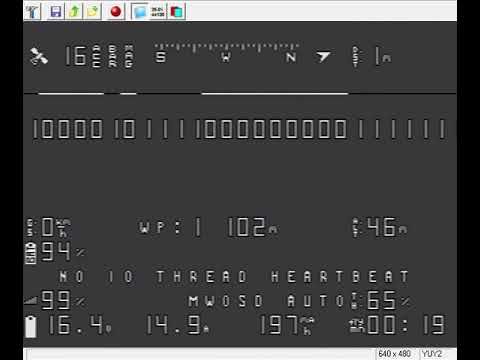
| As telemetry data is not normally visible, the telemetry data can be viewed on the OSD using a cli command: | |
| * Enable AAT telemetry with second test line in the cli: set osd_telemetry = TEST | |
| * Remember to change it back when finished: set osd_telemetry = ON (FC restart required) | |
| *** | |
| -## Description of operation | |
| +## Description of operation | |
| * iNAV knows its home launch position, current position and altitude | |
| * iNAV can calculate the pan and tilt information required by the antenna tracker | |
| * The data is sent using video telemetry over an analogue signal | |
| @@ -29,7 +33,7 @@ | |
| * No hardware modules or extra wiring on aircraft | |
| * Supports all RC TX - not limited to TX with telemetry | |
| * Does not require unreliable bluetooth / wifi connections to tracker | |
| -* Not impacted by 2.4G RC /Video | |
| +* Not impacted by 2.4G RC /Video | |
| * Ultra-fast position updating – up to 30 hz | |
| * Low size packet means higher tracking success rate in poor signal conditions | |
| @@ -43,7 +47,7 @@ | |
| [](https://youtu.be/FMLUvc-tX4E?t=20) | |
| *** | |
| -## Sentinel AAT for use with iNAV | |
| +## Sentinel AAT for use with iNAV | |
| Further information on the Sentinel AAT is available by clicking on the image: | |
| [](https://www.rcgroups.com/forums/showthread.php?3815901-New-product-low-cost-antenna-tracker-for-iNav-Betaflight-Ardupilot-KISS-etc) | |
| --- a/GPS-and-Compass-setup.md (GFM source) | |
| +++ b/GPS-and-Compass-setup.md (converted MDX) | |
| @@ -1,3 +1,7 @@ | |
| +--- | |
| +title: GPS and Compass Setup | |
| +--- | |
| + | |
| In the 7.0 release and later. INAV only supports Ublox and Ublox7 protocols. | |
| Recommended GNSS units are M8, M9 or M10 models for best navigation performance. | |
| @@ -16,11 +20,11 @@ | |
| Using default settings INAV will configure the GPS automatically, **there is no need for configuring it manually** using software like `u-center`. Nevertheless you have to configure your FC with INAV to receive the GPS signals. | |
| -For INAV before 1.9, it is also necessary to perform some [manual configuration of UBLOX 3.01 firmware GPS](https://github.com/iNavFlight/inav/wiki/Ublox-3.01-firmware-and-Galileo) to use Galileo satellites. | |
| +For INAV before 1.9, it is also necessary to perform some [manual configuration of UBLOX 3.01 firmware GPS](./Ublox-3.01-firmware-and-Galileo.md) to use Galileo satellites. | |
| With INAV 7.0 and later, `GPS`, `Galileo` and `BeiDou` or `Glonass` can be enabled in the GPS configuration tab (the `GPS` constellation is enabled by default). **Always enable as many constellation as your hardware will allow.** | |
| -The magnetometer / compass is normally included as part of the GNSS (GPS) module. | |
| +The magnetometer / compass is normally included as part of the GNSS (GPS) module. | |
| If you want to use an external magnetometer other than the one on your GNSS module, do not use both together. You can't use two identical chips/magnetometers on the same I2C bus. | |
| If your flight controller has an internal magnetometer on the FC, using it will likely to have poor results due to magnetic interference (not recommended). | |
| @@ -40,7 +44,7 @@ | |
| Only then can the IMU heading data be trusted for fixed position or slow speed navigation. Do not omit any of the above steps or your multirotor can experience toilet bowling, just as surely as it would with a poorly setup compass. Also conduct some tests to be sure everything is working correctly when you first setup a multirotor without a compass, just as you would with a compass. | |
| * **Note** : Presently multirotor navigation flight modes (RTH, POSHOLD etc) are required to be set **before** the magnetometer is turned off in the Configuration tab. Otherwise the navigation modes will not appear in the modes tab. You can select magnetometer type FAKE if no device is installed. Then proceed to alter your navigation modes. Once done, set Magnetometer type back to NONE for compass-less navigation. **This will be fixed in 7.1.1**.. The same will apply if your flight controller doesn't have a barometer. In this case you will be required to enter `inav_use_gps_no_baro = ON ` in the CLI, and select Barometer type FAKE. Then you can alter the navigation modes. Once done, set the barometer type back to NONE. | |
| -**Be aware. If you don't use a barometer as well as a magnetometer. And your satellite HDOP is greater than 1.3, the copters altitude and position accuracy will be greatly reduced.** | |
| +**Be aware. If you don't use a barometer as well as a magnetometer. And your satellite HDOP is greater than 1.3, the copters altitude and position accuracy will be greatly reduced.** | |
| INAV 7.1 will also offer better compass interference rejection. But this is not an excuse to be tardy on your install, or shortcut the calibration process. | |
| @@ -85,7 +89,7 @@ | |
| ## Installing the GNSS unit - Antenna orientation | |
| -Ensure the ceramic antenna (light brown or beige in color) faces skywards. To provide the strongest signal and best hemispherical satellite coverage. | |
| +Ensure the ceramic antenna (light brown or beige in color) faces skywards. To provide the strongest signal and best hemispherical satellite coverage. | |
| * **Important** : Be sure your GNSS module is mounted a minimum of 5cm away from any source of Radio Frequency or (Electro) Magnetic interference. **e.g.** A digital or analog video transmitter and its antenna. A radio receiver that has telemetry and its antenna. Or for the sake of the magnetometer, any source of magnetic fields. High current power wires, Motors or a Beeper. | |
| @@ -97,15 +101,15 @@ | |
| ## Setting up the compass alignment | |
| INAV's default Orientation Preset is `CW270FLIP`. This value is based on the orientation of the magnetometer chip on its PCB, chosen by the manufacturer. With respect to the Arrow direction they provide facing the front of the aircraft. Or the plug facing the rear of the aircraft. | |
| - | |
| + | |
| * Circled in _Red_ at the base of the GNSS unit. Is the QMC5883 magnetometer chip **with its white DOT providing an axis magnetic bearing reference based on the internal coil**. | |
| * Circled in _Orange_ is the orientation arrow showing the direction the compass should **ideally** be mounted, with that arrow facing the front of the model, and its direction of travel. Along with the Flight controllers arrow facing forward as well. | |
|  | |
| -However, there are many manufactures that have released GNSS/compass modules onto the market without any thought of adding an orientation arrow to assist installation. | |
| -In this case you maybe required to work out the orientation preset required for your hardware based on the magnetometer chips position, on your specific installation. | |
| +However, there are many manufactures that have released GNSS/compass modules onto the market without any thought of adding an orientation arrow to assist installation. | |
| +In this case you maybe required to work out the orientation preset required for your hardware based on the magnetometer chips position, on your specific installation. | |
| This chart is a reference to help gauge the hardware `Orientation Preset` of your magnetometer, based on the chips **Clockwise rotation**. And the power plug being a reference marker for the rear, if no forward arrow is provided. The orientation preset must first be established before making any mounting adjustment by the `align_mag_pitch, align_mag_roll, align_mag_yaw` settings in the CLI or alignment tool sliders. | |
|  | |
| @@ -220,7 +224,7 @@ | |
| * INAV does provide an automatic declination setting, based on GNSS coordinates, which is enabled by default `inav_auto_mag_decl = ON`. But if you want to change magnetic declination manually `set inav_auto_mag_decl = OFF`. You have to set correct declination of your specific location, which can be found here: www.magnetic-declination.com. If your magnetic declination readings are e.g. +3° 34' , the value entered in the INAV configurator is 3.34 (3,34 in some locales). In the CLI, the same effect would be `set mag_declination = 334`. For west declination, use a minus value, e.g. for 1° 32' W, `set mag_declination = -132`. In all cases (both CLI and GUI), the least significant digits are **minutes**, not decimal degrees. | |
| -* Calibrate your compass according to [compass calibration](https://github.com/iNavFlight/inav/wiki/Sensor-calibration#compass-calibration) | |
| +* Calibrate your compass according to [compass calibration](../quickstart/Sensor-calibration.md#compass-calibration) | |
| Some FC boards may not provide 4.5V power on USB supply. In order to power the GPS it is necessary to connect the battery or use another power source (a 4.5V source may be powered by USB). The onboard 3.3V will be powered by USB, but may not provide adequate voltage, as the GPS regulator typically requires 3.6V minimum. | |
| @@ -254,7 +258,7 @@ | |
| * Inav since 1.5 version and newer uses default automatic magnetic declination, if your on old verion or want to change magnetic declination manually you have to set correct declination of your specific location, which can be found here: www.magnetic-declination.com. If your magnetic declination readings are e.g. +3° 34' , the value entered in the INAV configurator is 3.34 (3,34 in some locales). In the CLI, the same effect would be `set mag_declination = 334`. For west declination, use a minus value, e.g. for 1° 32' W, `set mag_declination = -132`. In all cases (both CLI and GUI), the least significant digits are **minutes**, not decimal degrees. | |
| - * Calibrate your compass according to [compass calibration](https://github.com/iNavFlight/inav/wiki/Sensor-calibration#compass-calibration) | |
| + * Calibrate your compass according to [compass calibration](../quickstart/Sensor-calibration.md#compass-calibration) | |
| ## SBAS | |
| @@ -281,7 +285,7 @@ | |
| INAV 8.0 adds support for AssitNow Online and AssistNow Offline GPS assistance services, which is a proprietary A-GNSS service that can reduce Time To First Fix (TTFF) but requires access to the internet to fetch data. AssistNow Online data is valid for a few hours, while AssistNow Offline data can be valid for weeks. It can be specially beneficial for new GPS units and for units without flash or battery backed ram (BBR). | |
| -In order to use the service, you have to create a thingstream account and register applications to use AssistNow Online and Offline service. The process is described here: https://developer.thingstream.io/guides/location-services/assistnow-getting-started-guide | |
| +In order to use the service, you have to create a thingstream account and register applications to use AssistNow Online and Offline service. The process is described here: https://developer.thingstream.io/guides/location-services/assistnow-getting-started-guide | |
| Once you have your AssitNow service token, you need to configure INAV Configurator to use it, by clicking on the gear cog on the top right of the Configurator window. | |
|  | |
| --- a/Making-a-new-Virtualbox-to-make-your-own-INAV.md (GFM source) | |
| +++ b/Making-a-new-Virtualbox-to-make-your-own-INAV.md (converted MDX) | |
| @@ -1,3 +1,7 @@ | |
| +--- | |
| +title: Making a New Virtualbox to Make Your Own iNav | |
| +--- | |
| + | |
| [YouTube Video showing the steps below](https://youtu.be/WN0UEmIJLX4) | |
| 1. Download and install [VirtualBox](https://www.virtualbox.org/) | |
| @@ -8,7 +12,7 @@ | |
| 1. Download a fresh copy of INAV by running this in terminal: `git clone https://github.com/inavflight/inav` | |
| 1. Enter INAV folder, clean up previous builds, and build your target: `cd inav; make clean; make TARGET=TARGET_YOU_WANT_TO_MAKE` | |
| -And heres a [link](https://github.com/iNavFlight/inav/wiki/Features-safe-to-add-and-remove-to-fit-your-needs.#other-features-that-can-safely-be-removed-or-added) that gives some hints how to tailor INAV for your needs. | |
| +And heres a [link](./Features-safe-to-add-and-remove-to-fit-your-needs..md#other-features-that-can-safely-be-removed-or-added) that gives some hints how to tailor INAV for your needs. | |
| It is also now possible to build on OS X using the [cross compiler tools for ARM] | |
| 1. If you haven't already, install XCode command line tools and [homebrew](https://brew.sh) | |
| --- a/Request-form-new-PRESET.md (GFM source) | |
| +++ b/Request-form-new-PRESET.md (converted MDX) | |
| @@ -1,3 +1,7 @@ | |
| +--- | |
| +title: Request Form New PRESET | |
| +--- | |
| + | |
| https://github.com/iNavFlight/inav-configurator/edit/master/tabs/profiles.js | |
| --- a/UAV-Interconnect-Bus.md (GFM source) | |
| +++ b/UAV-Interconnect-Bus.md (converted MDX) | |
| @@ -1,3 +1,7 @@ | |
| +--- | |
| +title: UAV Interconnect Bus | |
| +--- | |
| + | |
| INAV implements universal interconnect bus for various types of sensors and executable devices. | |
| It's compatible with all existing controllers that have a spare UART and designed to be able to connect multiple sensors to one shared bus. Devices on the bus can be daisy-chained together for neater wiring. | |
| @@ -17,7 +21,7 @@ | |
| ### Data format on the wire | |
| -From data format point of view it's plain asynchronous serial with following parameters: | |
| +From data format point of view it's plain asynchronous serial with following parameters: | |
| ``` | |
| 115200,8,n,1 | |
| ``` | |
| @@ -52,8 +56,8 @@ | |
| ### Data integrity | |
| -Each transaction on a bus ends with a 1-byte CRC calculated by CRC-8/DVB-S2 algorithm. | |
| -CRC is calculated over all transaction bytes starting with command byte. | |
| +Each transaction on a bus ends with a 1-byte CRC calculated by CRC-8/DVB-S2 algorithm. | |
| +CRC is calculated over all transaction bytes starting with command byte. | |
| CRC is calculated by the data originator and verified by the master. | |
| ## Commands on a bus | |
| --- a/Legacy-Mixers.md (GFM source) | |
| +++ b/Legacy-Mixers.md (converted MDX) | |
| @@ -1,3 +1,7 @@ | |
| +--- | |
| +title: Legacy Mixers | |
| +--- | |
| + | |
| ## Overview | |
| In INAV 2.0 (and hence in *development* after the release of inav 1.9.1), all mixers are removed from the flight controller. Mixers can be assigned by either the Configurator 2.0, or in the CLI. If the CLI is used: | |
| --- a/Legacy-target-Paris-Air-Hero-32-F3.md (GFM source) | |
| +++ b/Legacy-target-Paris-Air-Hero-32-F3.md (converted MDX) | |
| @@ -1,3 +1,7 @@ | |
| +--- | |
| +title: Legacy Target Paris Air Hero 32 F3 | |
| +--- | |
| + | |
| # Board - Paris Air Hero 32 | |
| This is the AIR3 PARIS Sirius AirHERO 32 F3 board from MultiWiiCopter | |
| @@ -28,10 +32,10 @@ | |
| | --- | -------------- | -------------------------------- | | |
| | 1 | Ground | | | |
| | 2 | +5V | | | |
| -| 3 | RX_PPM | Enable `feature RX_PPM` | | |
| -| 4 | AIRSPEED | Airspeed sensor (3.3V max) | | |
| -| 5 | USART2 TX | | | |
| -| 6 | USART2 RX | | | |
| +| 3 | RX_PPM | Enable `feature RX_PPM` | | |
| +| 4 | AIRSPEED | Airspeed sensor (3.3V max) | | |
| +| 5 | USART2 TX | | | |
| +| 6 | USART2 RX | | | |
| | 7 | SS1 RX | Enable `feature SOFT_SERIAL` | | |
| | 8 | SS1 TX | | | |
| --- a/Legacy-target-Sparky.md (GFM source) | |
| +++ b/Legacy-target-Sparky.md (converted MDX) | |
| @@ -1,3 +1,7 @@ | |
| +--- | |
| +title: Legacy Target Sparky | |
| +--- | |
| + | |
| # Board - Sparky | |
| The Sparky is a very low cost and very powerful board. |
Sign up for free
to join this conversation on GitHub.
Already have an account?
Sign in to comment