Created
November 21, 2014 20:45
-
-
Save omaciel/2fb2a739b8fd693b9f4e to your computer and use it in GitHub Desktop.
Revisions
-
omaciel created this gist
Nov 21, 2014 .There are no files selected for viewing
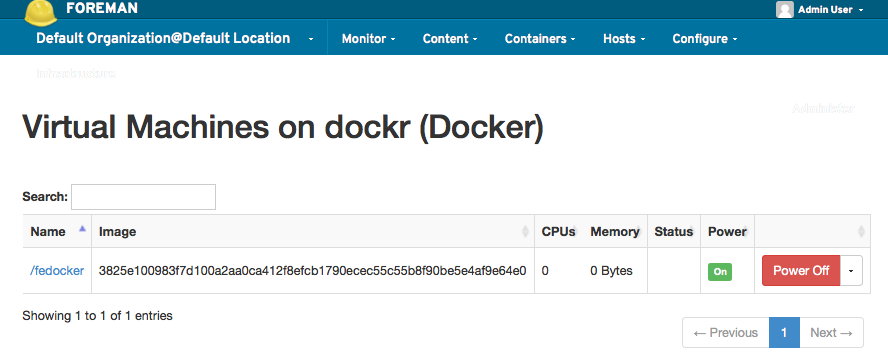
This file contains hidden or bidirectional Unicode text that may be interpreted or compiled differently than what appears below. To review, open the file in an editor that reveals hidden Unicode characters. Learn more about bidirectional Unicode charactersOriginal file line number Diff line number Diff line change @@ -0,0 +1,83 @@ * Enable the "Extras" Red Hat channel so you can install **Docker** ... ```bash #subscription-manager repos --enable rhel-7-server-extras-rpms ``` * ... and install it ```bash # yum install -y docker ``` * Make sure to enable the **docker** service... ```bash # systemctl enable docker ``` * ... and that it can be run as the **apache** user (this may be dropped as the code matures) ```bash # usermod -aG docker apache ``` * Deal with **SElinux** (this may be dropped as the code matures) ```bash # echo "OPTIONS=--selinux-enabled -H tcp://0.0.0.0:2375 -H unix:///var/run/docker.sock" >> /etc/sysconfig/docker ``` * Finally, start the **docker** service ```bash # systemctl start docker ``` * Test that **Docker** is working (you should see a similar output as shown below): ```bash # docker ps CONTAINER ID IMAGE COMMAND CREATED STATUS PORTS NAMES ``` * Obtain a valid Docker image (use **busybox** for a fairly small and fast download; I chose to use **fedora/ssh** for this) ```bash # docker pull fedora/ssh ``` * Create a new "Docker" Compute Resource and use "http://localhost:2375" for its **URL** * The **Test Connection** button shows a spinner icon but no confirmation message is displayed to tell you whether things look ok or now  * To create a new **container**, click the **Containers** and **New container** menus, and select the **Docker** compute resource you created before 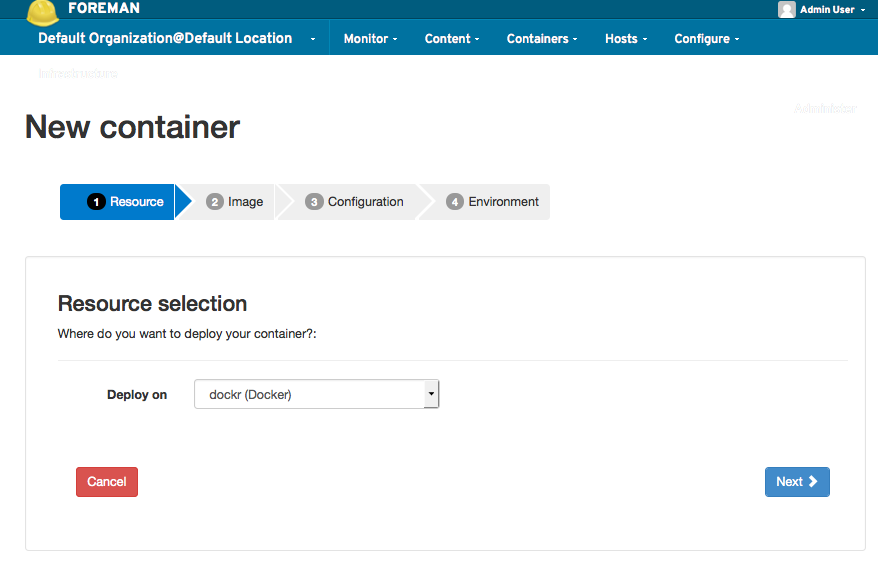 * Type **fedora/ssh** (case matters) in the search field and **latest** in the **Tag** field * **NOTE**: for some reason, it wasn't until I manually started a container manually with ``docker run --name myfedora -t fedora/ssh:latest`` that this part of the process verified that **fedora/ssh** was a valid entry by showing a green check mark.  * Type a name for your container... 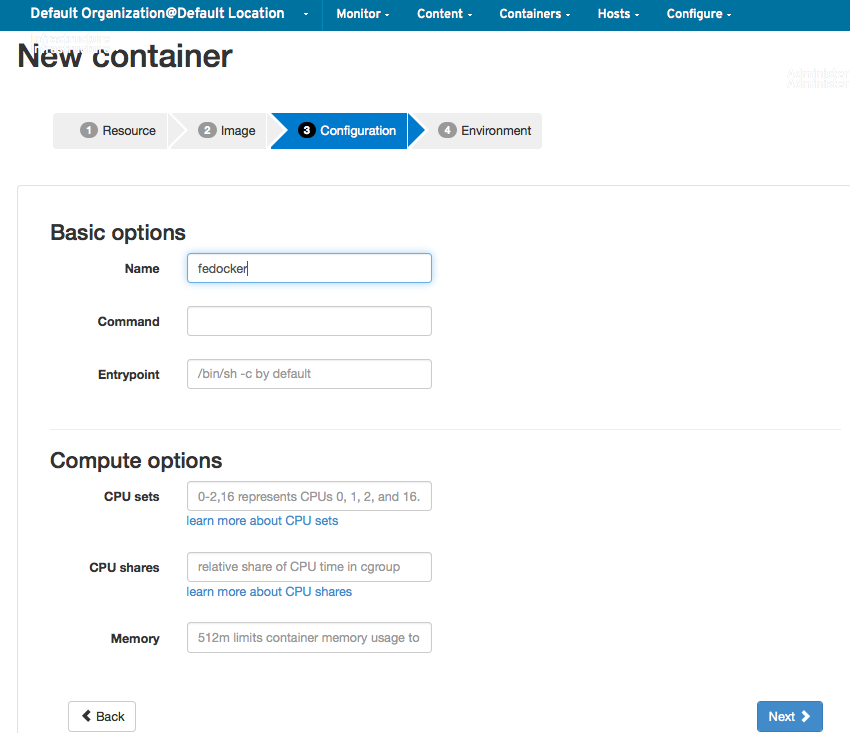 * Click the **TTY** checkbox... 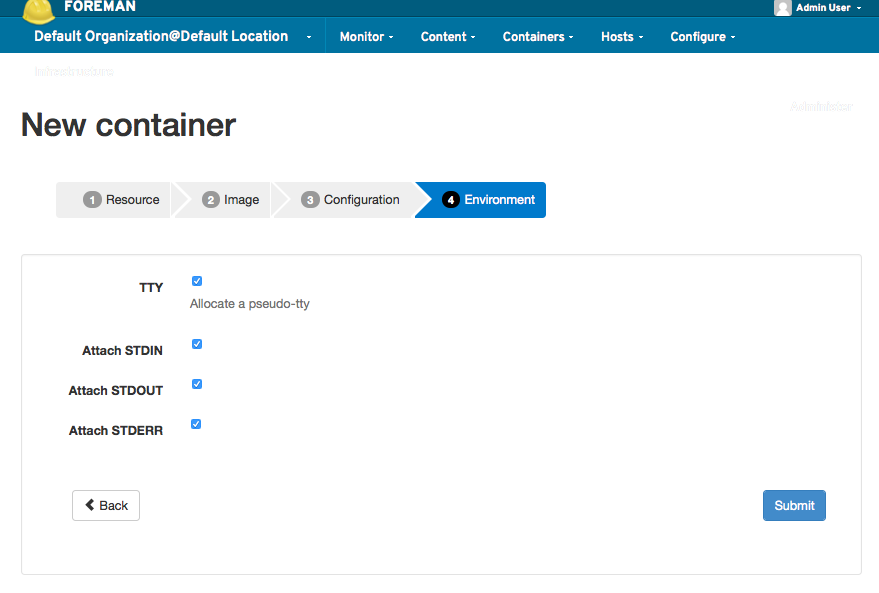 * ...and your new container is ready to be started 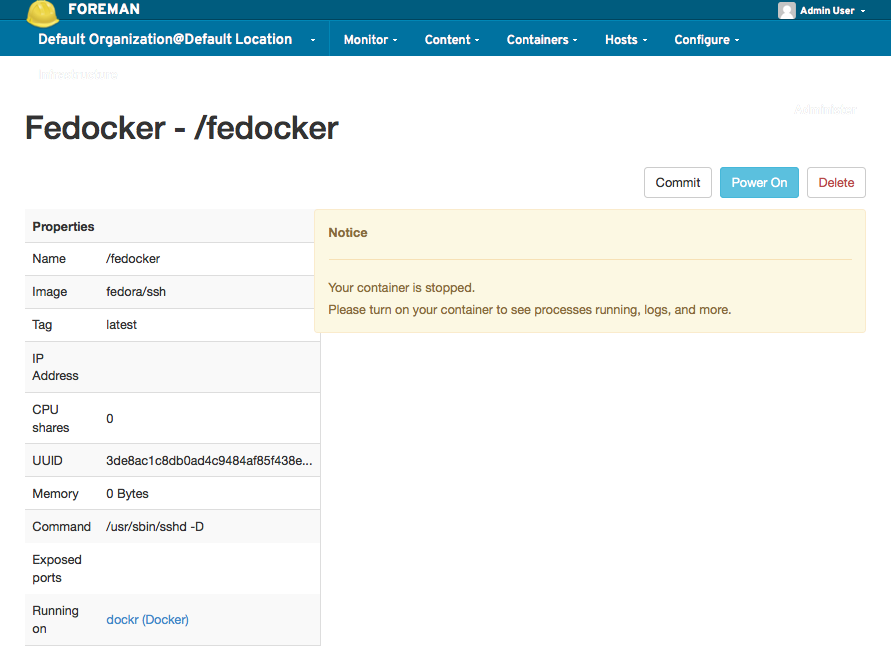 * ...and running 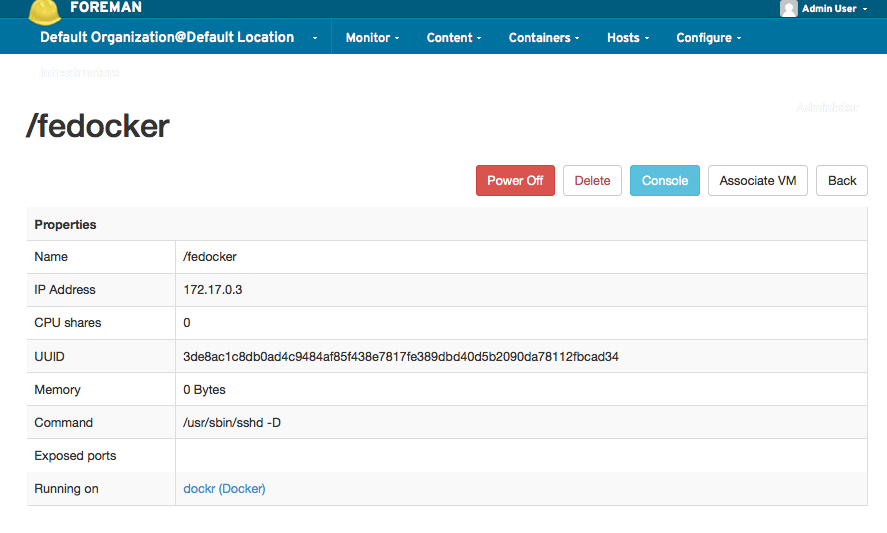 * You can see your container by going to the **All containers** submenu under the **Containers** menu.