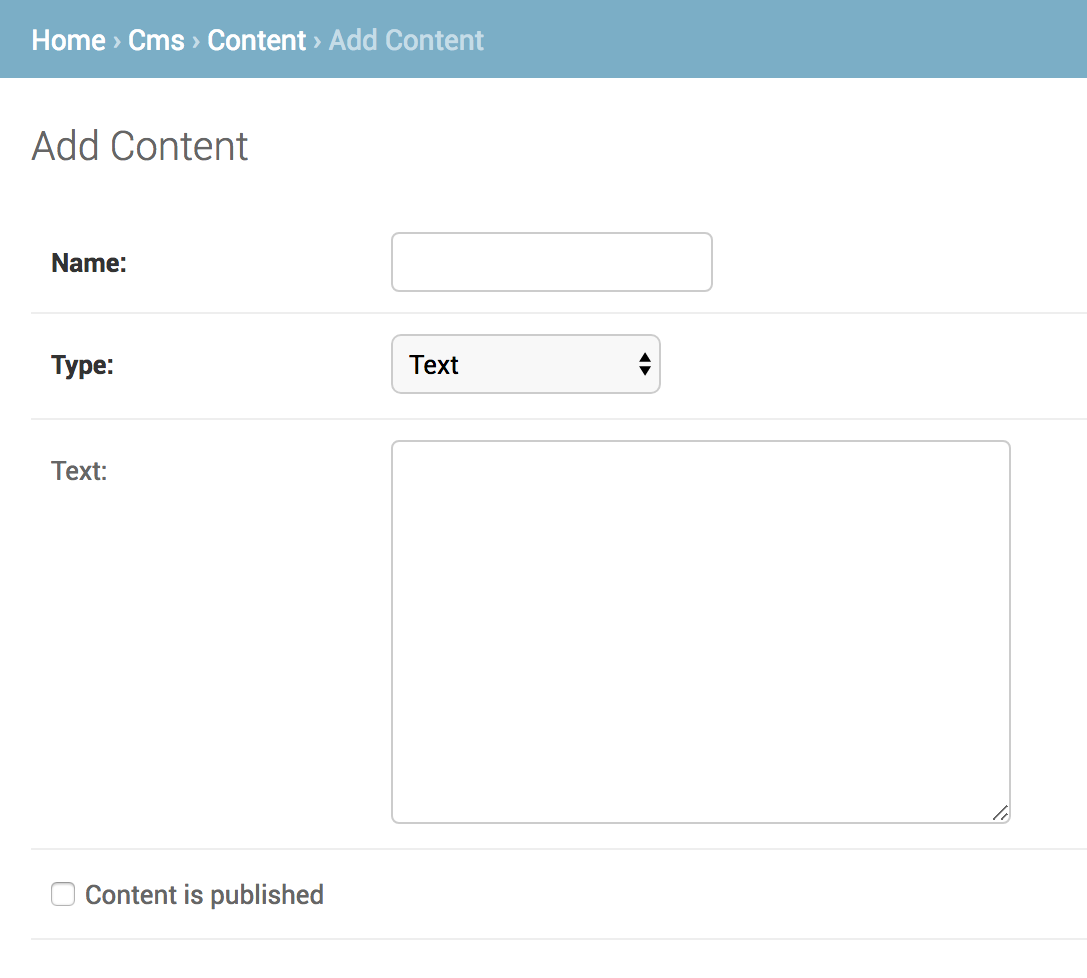
Let's say I have a simple Content model.py that looks like this:
# Content model
class Content(models.Model):
    TYPE_CHOICES = (
        ('text', 'Text'),
        ('html', 'HTML'),
        ('image', 'Image'),
    )
    name = models.CharField(max_length=200)
    type = models.CharField(
        max_length=7,
        default="text",
        choices=TYPE_CHOICES,
    )
    text = models.TextField(null=True, blank=True)
    html = models.TextField(null=True, blank=True)
    image = models.ImageField(upload_to='content_images', null=True, blank=True)
    is_published = models.BooleanField(default=False)
    published_at = models.DateTimeField(null=True, blank=True)
And an admin.py that looks like this:
from django.contrib import admin
from .models import Content


class ContentAdmin(admin.ModelAdmin):
    search_fields = ['name', 'text', 'html']
    list_display = ('id', 'name', 'type')
    list_display_links = ('id', 'name')
    list_filter = ('type',)
The code above will yield a 'Add Content' admin page that looks like this:
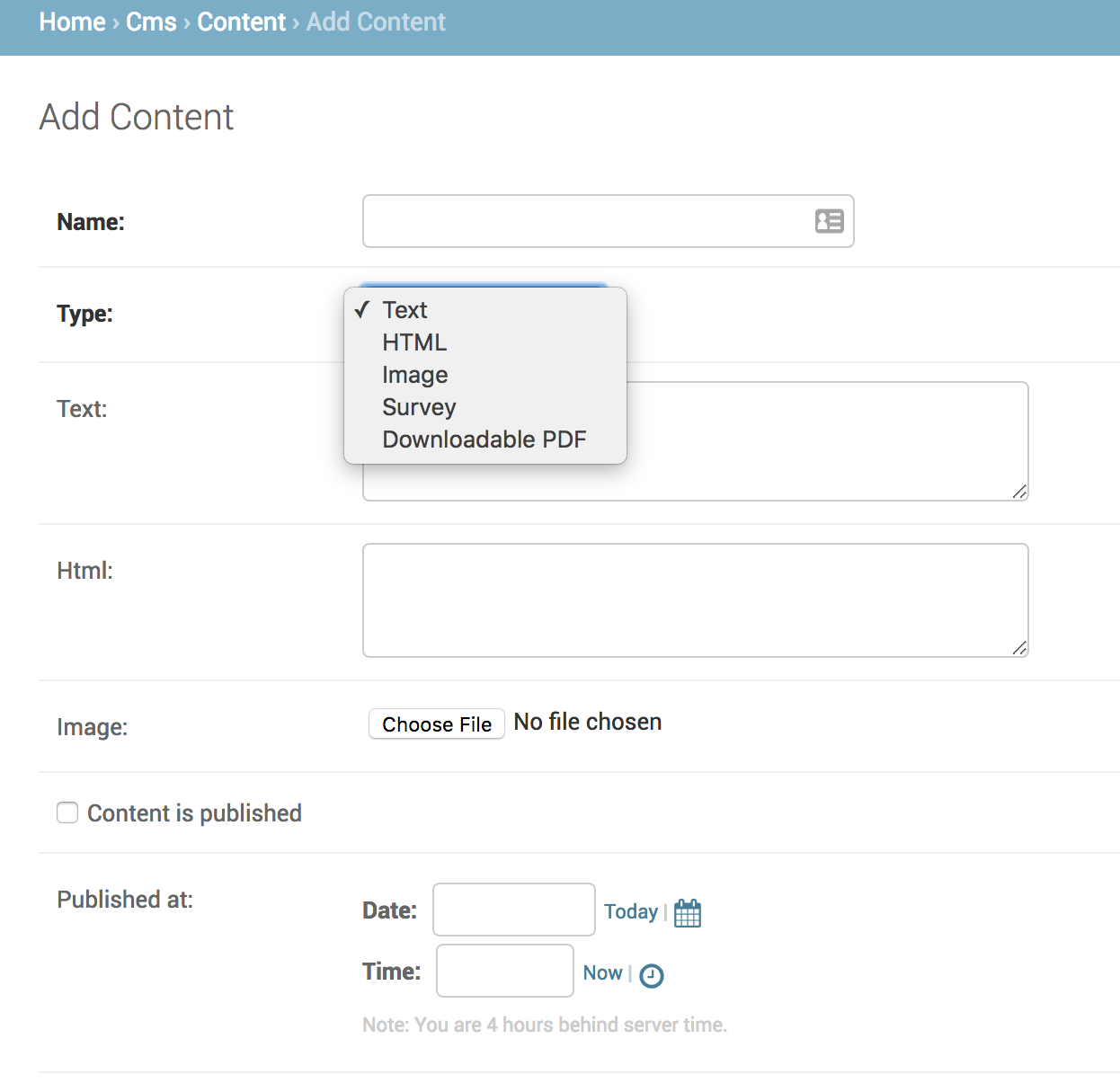
Now - let us make the following improvements to the admin page.
- Add an entry at the top of the
typeselect field and let it say "Select a type". - Hide the
text,htmlandimagefields until atypeis selected. - Hide the
published_atfield - Add these validations:
- If
type="text"then thetextfield is required - If
type="html"then thehtmlfield is required - If
type="image"then theimagefield is required
- If
The first thing we want to do is add a forms.py file with a ContentForm class that will handle all our form validations. This is a Django best practice so please always use Django Forms to handle your form submissions.
Here is what our form will look like:
from django import forms
from cms.models import Content


class ContentForm(forms.ModelForm):
    # Add a 'Select a type' entry in first spot
    type_choices = list(Content.TYPE_CHOICES)
    type_choices.insert(0, ("", "Select a type"))
    type_choices = tuple(type_choices)

    type = forms.ChoiceField(choices=type_choices)

    class Meta:
        model = Content
        # This will hide the 'published_at' field
        exclude = ['published_at'] # exclude or fields is a required meta field

    def clean(self):
        cleaned_data = super(ContentForm, self).clean()
        content_type = cleaned_data.get("type")

        if content_type == "text" and not cleaned_data.get("text"):
            self.add_error(
                'text', "Please provide text content"
            )

        if content_type == "html" and not cleaned_data.get("html"):
            self.add_error(
                'html', "Please provide html content"
            )

        if content_type == "image" and not cleaned_data.get("image"):
            self.add_error(
                'image', "Please select an image"
            )

        return cleaned_data
The type = forms.ChoiceField(choices=type_choices) line resets the type field with our custom type_choices.
The code in the form's clean method will handle our required validations and ensure that if type="text" then the text field is required - and the same for html and image fields.
Now that we have created a form that has a customized type field and validitions - let us tell our admin to use the form by modifying the get_form method. Our new admin.py will look like this:
from django.contrib import admin
from .models import Content
from .forms import ContentForm


class ContentAdmin(admin.ModelAdmin):
    search_fields = ['name', 'text', 'html']
    list_display = ('id', 'name', 'type')
    list_display_links = ('id', 'name')
    list_filter = ('type',)

   # Import the ContentForm and tell admin to use it
   def get_form(self, request, obj=None, **kwargs):
        form = ContentForm
        return form
We will use CSS to initially hide the text, html and image fields. The static/css/cms/admin/content.css file should look like this:
.field-text{
  display: none;
}
.field-html{
  display: none;
}
.field-image{
  display: none;
}
We will use javascript to hide or show the fields when a type field is selected. The static/js/cms/admin/content.js file should look like this:
function hideAllContentFields(){
    $(".field-text").hide();
    $(".field-html").hide();
    $(".field-image").hide();
}
function showContentFields(){
    hideAllContentFields();

    var type = $("#id_type").val();
    if (type == "text"){
        $(".field-text").show();
    }
    else if (type == "html"){
        $(".field-html").show();
    }
    else if (type == "image"){
        $(".field-image").show();
    }
}

$(function() {
    $( "#id_type" ).change(function( event ) {
        showContentFields();
    });
    showContentFields();
});
Add the javascript and CSS files to the Media class portion of the admin.py code. Your final admin.py should look like this:
from django.contrib import admin
from .models import Content
from .forms import ContentForm


class ContentAdmin(admin.ModelAdmin):
    search_fields = ['name', 'text', 'html']
    list_display = ('id', 'name', 'type')
    list_display_links = ('id', 'name')
    list_filter = ('type',)

    class Media:
        js = (
            'js/jquery-3.3.1.min.js',
            'js/cms/admin/content.js',
        )
        css = {
            'all': ('css/cms/admin/content.css',)
        }

   # Import the ContentForm and tell admin to use it
   def get_form(self, request, obj=None, **kwargs):
        form = ContentForm
        return form
Now your 'Add Content' admin page should look like this:
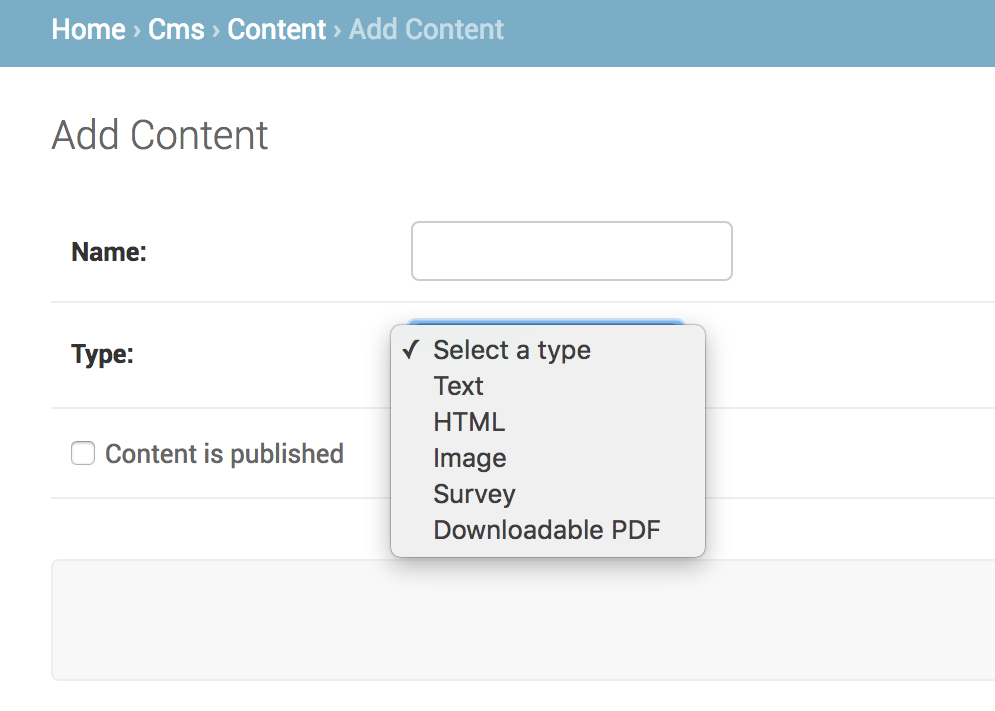
And when you select type="text" you should see: