
This gist will explain how to easily deploy a Nuxt application on O2Switch host. But if you are trying to deploy on another host which is also using CPanel, then you might be interested in this gist aswell.
- An o2switch account (or any host using CPanel)
- A Nuxt APP (obviously)
- Node and NPM installed
- Optional - Yarn
- Optional - FTP Client like Filezilla
In your package.json of your app, you must have this script:
"scripts": {
    "build": "nuxt build",
    ...
  },
If not, add it then simply run this command to build your Nuxt application:
yarn build or npm run build
This will generate the .output folder containing your application. The content of this folder is what we will put
on the server.
On CPanel, click on the Files > File Manager link, it will redirect you on another web app from which you'll be able to upload files. Otherwise you can also access this location using a FTP Client like Filezilla. I find this last option easier but both works.
If you decide to use a FTP Client, you'll find the server URL by clicking on Files > FTP Accounts.
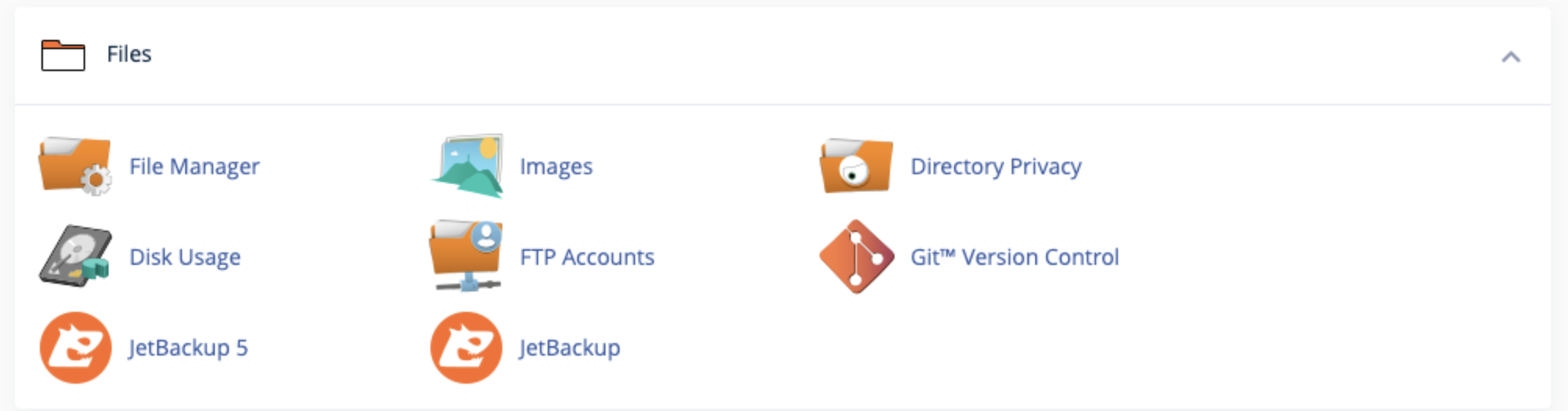
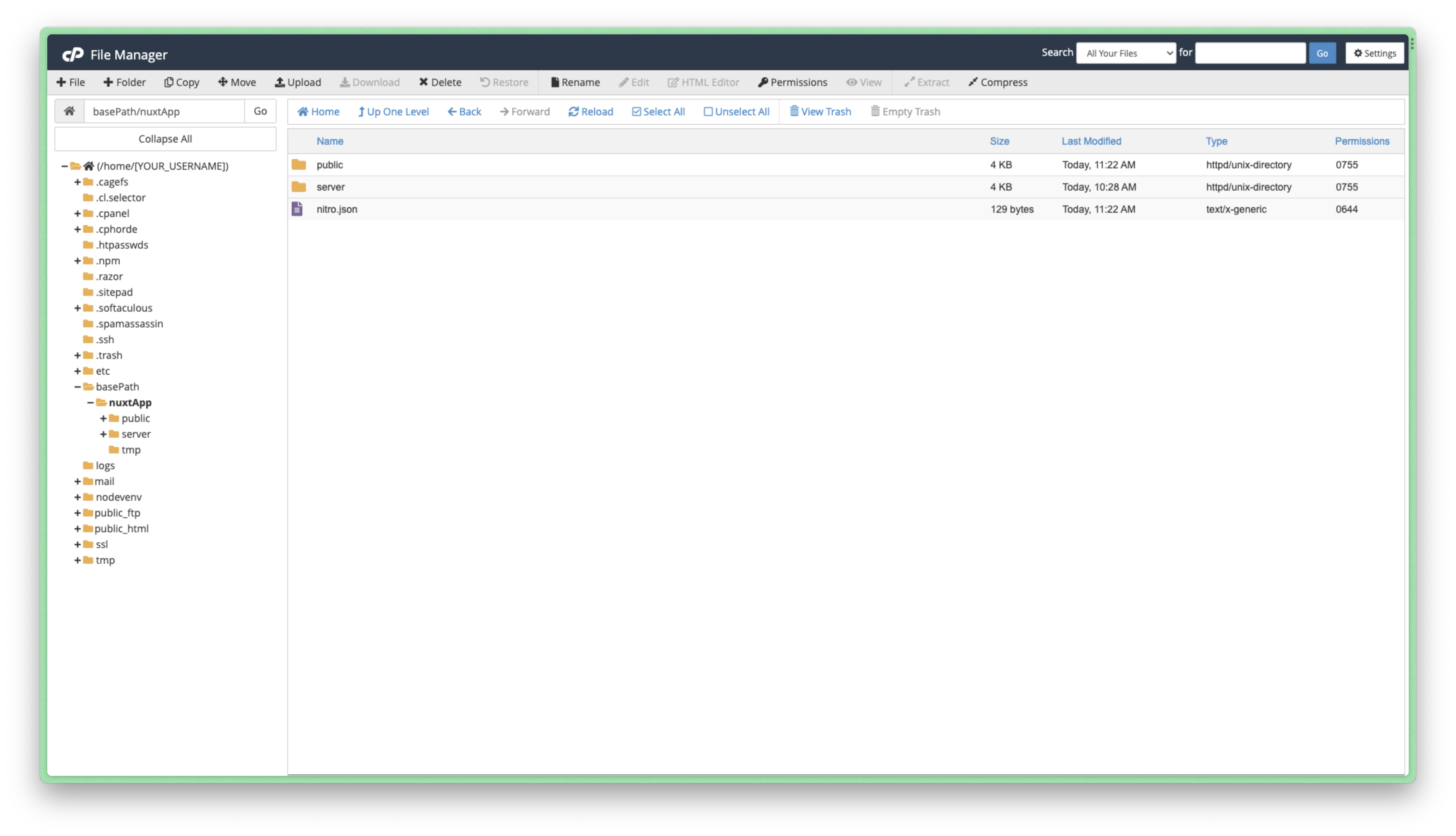
Now that you're on the server, put the content of the .ouput folder previously generated in a new folder. You can name it as you want, just make sure to keep the path because it will be needed later when we'll be configuring the Node.JS server.
If you did everything corretly, you should now have something like this:
One subtility of CPanel and how it works behind when you try to launch a Node server, is that you can't launch ESM JS files. This is quite an issue because you'll probably working with ES modules instead of CommonJS modules.
But don't worry, there is a way to fix this.
The solution is to create an app loader in CommonJS, which will be the new entry point of your application.
Start by creating a new file, we'll name it loader.cjs. The extension .cjs is important if you have specified "type": "module"
in your package.json.
async function loadApp() {
  await import("./server/index.mjs");
}

loadApp();
The only thing that this script will do is importing the file that you wanted as your entrypoint, but since it's a CommonJS file, it won't cause any trouble while starting the server.
Now put the file at the root of your app folder, alongside server and public folder on your server file manager. To illustrate, if your nuxt project is in the folder my-app/nuxtApp/, then the file will have the path /home/<YOUR_USERNAME>/my-app/nuxtApp/loader.cjs.
On CPanel, click on Software > Setup Node.JS App

You'll find there the list of all your NodeJS application, if this is your first one, the list is empty. Click on Create Application.
Configure the applciation like this:
- Node.js version: Select the NodeJs version you used during you development
- Application mode: Production
- Application root: Set the path where you put your files on the server
- Application URL: Select in the dropdown list the domain or sub-domain on which you want the application to be setup
- Applciation startup file: Choose the app loader file previously created (i.e: loader.cjs)
- Passenger log file: You can setup a log file if you want. It is totally optional but I suggest you to do it. It's always easier to debug with a log file.
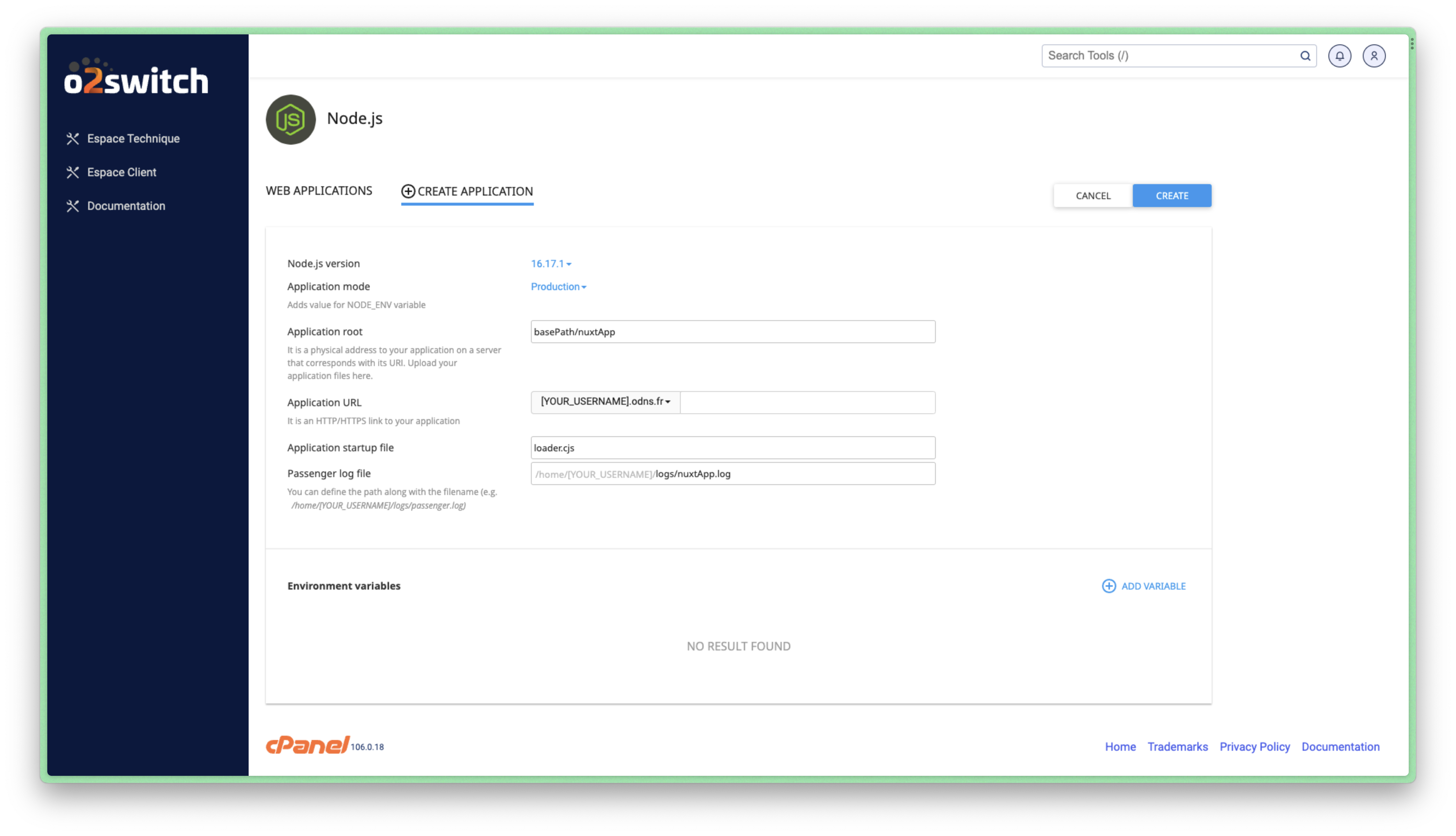
When you finished configuring the application, click on Create. The NodeJS server will now start and you application should be available at the address chosen in Application URL.
Thanks for reading and I hope it was useful.


Thanks a lot for the gist !
Maybe you could add the path for the
loader.cjsfile for future readers ?