Skip to content

Instantly share code, notes, and snippets.

@benniezhu
Forked from AWMooreCO/AdvancedWindowSnap.ahk
Last active December 14, 2023 00:38
Show Gist options
  • Select an option

  • Save benniezhu/34e53421083dfc69ceb771b159fceb78 to your computer and use it in GitHub Desktop.

Select an option

Save benniezhu/34e53421083dfc69ceb771b159fceb78 to your computer and use it in GitHub Desktop.
Advanced Window Snap is a script for AutoHotKey that expands upon Windows built-in window-snapping hotkeys.

#TLDR Documentation This version basically steals the functionality of the mac rectangle app so that you can make full screen, top-bottom halves, left-middle-right thirds, and quarters using the same binding as you would in rectangle.

Advanced Window Snap

Advanced Window Snap is a script for AutoHotKey that expands upon Windows built-in window-snapping hotkeys (which are Win + LEFT to snap an active window to the left half of a monitor and Win + RIGHT to snap a window to the right half of a monitor) by adding 9 additional snap methods.

Installation Steps

  1. Install AutoHotKey
  2. Copy or Download the AdvancedWindowSnap.ahk file to your computer and double click it to run it.
  3. (Optional) To have the program run when you start up your computer, place the .ahk file into your computer's startup folder.
    • The Windows 7 Startup Folder can be accessed by mousing to Start > All Programs, then right-clicking on Startup and selecting "Open".
    • The Windows 8 Startup Folder can be accessed by tapping Win + R on your keyboard, then in the Open: field, type shell:startup then press Enter.

Advanced Window Snap Keybindings

Directional Arrow Hotkeys:

Hotkey Behavior
Win + Alt + UP Window will snap to the top half of the screen.
Win + Alt + DOWN Window will snap to the bottom half of the screen.
Ctrl + Win + Alt + UP Window will snap to the top third of the screen.
Ctrl + Win + Alt + DOWN Window will snap to the bottom third of the screen.

Numberpad Hotkeys (Landscape):

These will work only if you have NumLock turned ON. These are ideal for Landscape Monitors.

Hotkey Behavior
Win + Alt + Numpad 7 Window will snap to the top-left quarter of the screen.
Win + Alt + Numpad 8 Window will snap to the top half of the screen.
Win + Alt + Numpad 9 Window will snap to the top-right quarter of the screen.
Win + Alt + Numpad 1 Window will snap to the bottom-left quarter of the screen.
Win + Alt + Numpad 2 Window will snap to the bottom half of the screen.
Win + Alt + Numpad 3 Window will snap to the bottom-right quarter of the screen.

Numberpad Hotkeys (Portrait):

These will work only if you have NumLock turned ON. These are ideal for Portrait Monitors.

Hotkey Behavior
Ctrl + Win + Alt + Numpad 8 Window will snap to the top third of the screen.
Ctrl + Win + Alt + Numpad 5 Window will snap to the middle third of the screen.
Ctrl + Win + Alt + Numpad 2 Window will snap to the bottom third of the screen

Changelog

  • v1.00, 08 Jan 2015
    • Initial Version

Recommendation For Editing AHK Files

If you plan on working with AutoHotKey files, consider using Sublime Text 3. Read my steps for setting up Sublime Text 3 to edit AutoHotKey files here: Working with AutoHotKey in Sublime Text.

/**
* Advanced Window Snap
* Snaps the Active Window to one of nine different window positions.
*
* @author Andrew Moore <andrew+github@awmoore.com>
* @version 1.0
*/
/**
* SnapActiveWindow resizes and moves (snaps) the active window to a given position.
* @param {string} winPlaceVertical The vertical placement of the active window.
* Expecting "bottom" or "middle", otherwise assumes
* "top" placement.
* @param {string} winPlaceHorizontal The horizontal placement of the active window.
* Expecting "left" or "right", otherwise assumes
* window should span the "full" width of the monitor.
* @param {string} winSizeHeight The height of the active window in relation to
* the active monitor's height. Expecting "half" size,
* otherwise will resize window to a "third".
*/
SnapActiveWindow(winPlaceVertical, winPlaceHorizontal, winSizeHeight) {
WinGet activeWin, ID, A
activeMon := GetMonitorIndexFromWindow(activeWin)
SysGet, MonitorWorkArea, MonitorWorkArea, %activeMon%
if (winSizeHeight == "half") {
height := (MonitorWorkAreaBottom - MonitorWorkAreaTop)/2
} else if (winSizeHeight == "third"){
height := (MonitorWorkAreaBottom - MonitorWorkAreaTop)/3
} else if (winSizeHeight == "full"){
height := (MonitorWorkAreaBottom - MonitorWorkAreaTop)
}
if (winPlaceHorizontal == "left") {
posX := MonitorWorkAreaLeft
width := (MonitorWorkAreaRight - MonitorWorkAreaLeft)/2
} else if (winPlaceHorizontal == "left-third") {
posX := MonitorWorkAreaLeft
width := (MonitorWorkAreaRight - MonitorWorkAreaLeft)/3
} else if (winPlaceHorizontal == "middle-third") {
posX := MonitorWorkAreaLeft + (MonitorWorkAreaRight - MonitorWorkAreaLeft)/3
width := (MonitorWorkAreaRight - MonitorWorkAreaLeft)/3
} else if (winPlaceHorizontal == "right-third") {
posX := MonitorWorkAreaLeft + 2*((MonitorWorkAreaRight - MonitorWorkAreaLeft)/3)
width := (MonitorWorkAreaRight - MonitorWorkAreaLeft)/3
} else if (winPlaceHorizontal == "right") {
posX := MonitorWorkAreaLeft + (MonitorWorkAreaRight - MonitorWorkAreaLeft)/2
width := (MonitorWorkAreaRight - MonitorWorkAreaLeft)/2
} else if (winPlaceHorizontal == "full"){
posX := MonitorWorkAreaLeft
width := (MonitorWorkAreaRight - MonitorWorkAreaLeft)
} else {
posX := MonitorWorkAreaLeft
width := MonitorWorkAreaRight - MonitorWorkAreaLeft
}
if (winPlaceVertical == "bottom") {
posY := MonitorWorkAreaBottom - height
} else if (winPlaceVertical == "middle") {
posY := MonitorWorkAreaTop + height
} else {
posY := MonitorWorkAreaTop
}
WinMove,A,,%posX%,%posY%,%width%,%height%
}
/**
* GetMonitorIndexFromWindow retrieves the HWND (unique ID) of a given window.
* @param {Uint} windowHandle
* @author shinywong
* @link http://www.autohotkey.com/board/topic/69464-how-to-determine-a-window-is-in-which-monitor/?p=440355
*/
GetMonitorIndexFromWindow(windowHandle) {
; Starts with 1.
monitorIndex := 1
VarSetCapacity(monitorInfo, 40)
NumPut(40, monitorInfo)
if (monitorHandle := DllCall("MonitorFromWindow", "uint", windowHandle, "uint", 0x2))
&& DllCall("GetMonitorInfo", "uint", monitorHandle, "uint", &monitorInfo) {
monitorLeft := NumGet(monitorInfo, 4, "Int")
monitorTop := NumGet(monitorInfo, 8, "Int")
monitorRight := NumGet(monitorInfo, 12, "Int")
monitorBottom := NumGet(monitorInfo, 16, "Int")
workLeft := NumGet(monitorInfo, 20, "Int")
workTop := NumGet(monitorInfo, 24, "Int")
workRight := NumGet(monitorInfo, 28, "Int")
workBottom := NumGet(monitorInfo, 32, "Int")
isPrimary := NumGet(monitorInfo, 36, "Int") & 1
SysGet, monitorCount, MonitorCount
Loop, %monitorCount% {
SysGet, tempMon, Monitor, %A_Index%
; Compare location to determine the monitor index.
if ((monitorLeft = tempMonLeft) and (monitorTop = tempMonTop)
and (monitorRight = tempMonRight) and (monitorBottom = tempMonBottom)) {
monitorIndex := A_Index
break
}
}
}
return %monitorIndex%
}
; full screen
^!Enter::SnapActiveWindow("", "full" ,"full")
; Directional Arrow Hotkeys (halves )
^!Up::SnapActiveWindow("top","full","half")
^!Down::SnapActiveWindow("bottom","full","half")
^!Left::SnapActiveWindow("", "left" ,"full")
^!Right::SnapActiveWindow("","right","full")
;thirds
^!d::SnapActiveWindow("", "left-third", "full")
^!f::SnapActiveWindow("", "middle-third", "full")
^!g::SnapActiveWindow("", "right-third", "full")
; Quarters
^!u::SnapActiveWindow("top","left","half")
^!i::SnapActiveWindow("top","right","half")
^!j::SnapActiveWindow("bottom","left","half")
^!k::SnapActiveWindow("bottom","right","half")
@MedBooster
Copy link

Thank you for the script,
I've tried to make it work... but it seems it does not work in Windows 10 (AutoHotKey V1) , is that right?

I've been trying to find an alternative to https://dualmonitortool.sourceforge.net/ dualmonitortools... as I am getting annoying gaps between the edge of the display and windows.

@benniezhu
Copy link
Author

It should work on Windows 10. I am currently using it on AHK V1.1 and Windows 11, but I originally developed it on windows 10 and AHK V1 or V1.1. I still need to work on the documentation but as of now; the only hotkeys that work are

ctrl + alt + the direction keys for top/bottom/left/right halves

ctrl + alt + d/f/g for left/middle/right thirds

ctrl + alt + enter for full screen

@MedBooster
Copy link

It should work on Windows 10. I am currently using it on AHK V1.1 and Windows 11, but I originally developed it on windows 10 and AHK V1 or V1.1. I still need to work on the documentation but as of now; the only hotkeys that work are

ctrl + alt + the direction keys for top/bottom/left/right halves

ctrl + alt + d/f/g for left/middle/right thirds

ctrl + alt + enter for full screen

Yes... now it works for some reason, maybe it was interfering with some other script or program.

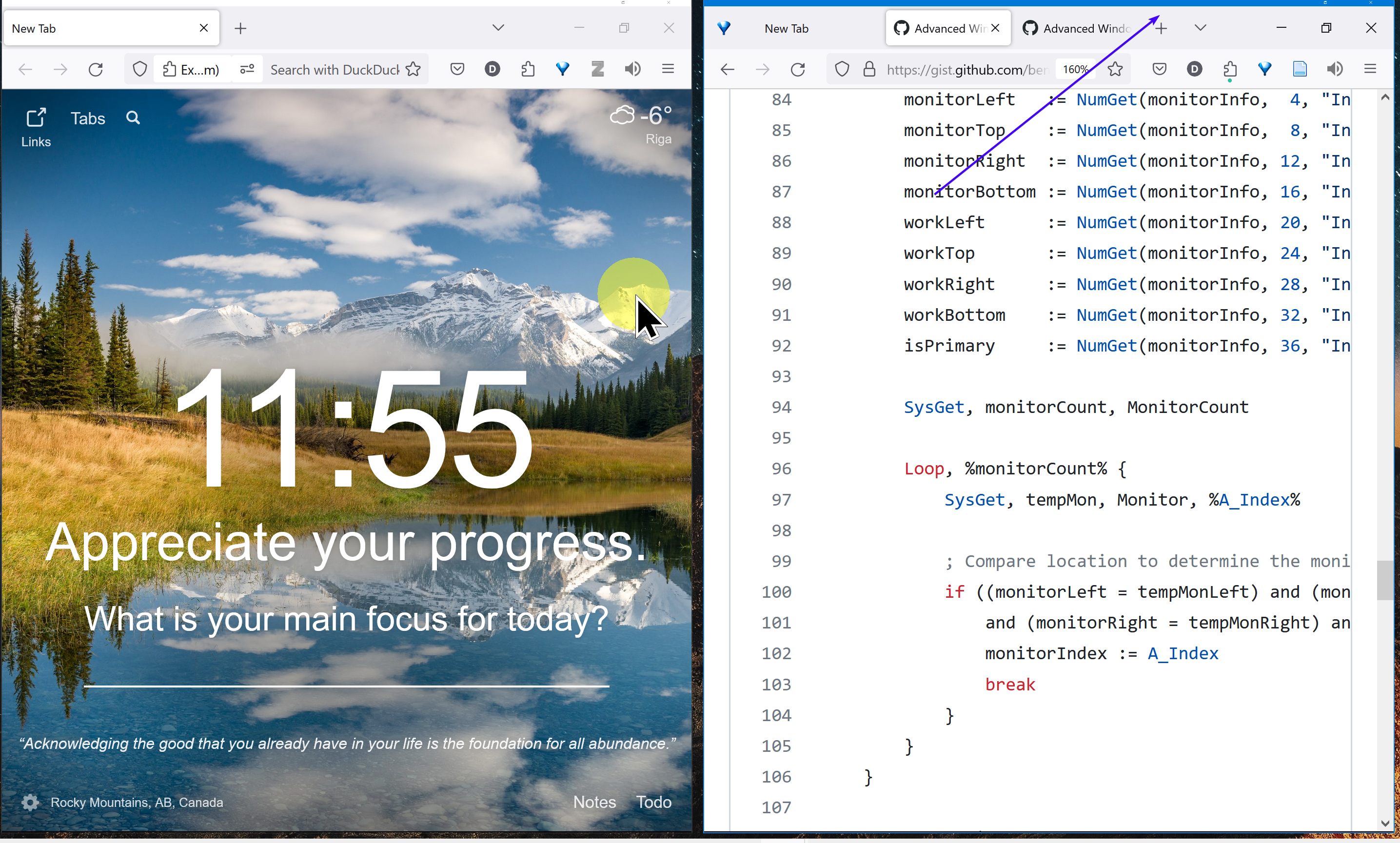
Anyway, as you can see here, I weirdly enough keep getting these gaps. Does this happen to you as well?
In Windows 10 I am not even able to drag a window all the way to the side manually with my cursor – so maybe that has something to do with it.
image

@MedBooster
Copy link

MedBooster commented Nov 29, 2023

Along with this weird blue line that appears on the top of some windows and disappears when I move the window, weird...
image

image

Maybe I should move these comments to the issues section? Sorry if I am not following protocol, I am not so good with Github.

@benniezhu
Copy link
Author

Up to you I dont mind. I do have the little spaces but i think i just got used to it; feel free to tweak it to see if you can get it to stop. how can i reproduce the blue line?

Sign up for free to join this conversation on GitHub. Already have an account? Sign in to comment