
Forked from alexchiri/get-started-with-kind-in-wsl2-installation-instructions.md
Created
April 19, 2021 10:01
-
-
Save argentinaluiz/a5dc8b1b58995bbbe98e37d9936ea436 to your computer and use it in GitHub Desktop.
Revisions
-
alexchiri revised this gist
May 17, 2020 . 1 changed file with 2 additions and 0 deletions.There are no files selected for viewing
This file contains hidden or bidirectional Unicode text that may be interpreted or compiled differently than what appears below. To review, open the file in an editor that reveals hidden Unicode characters. Learn more about bidirectional Unicode charactersOriginal file line number Diff line number Diff line change @@ -1,5 +1,7 @@ # Get started with Kubernetes in Docker (kind) in WSL2 The accompanying video for this tutorial is published on [https://learn.alexchiri.com](https://learn.alexchiri.com/index.php/aiovg_videos/a1-how-to-get-started-with-kubernetes-in-docker-kind-in-wsl2-or-any-linux-distribution/) Contents: * [Recommendations](#recommendations) -
May 17, 2020 . 1 changed file with 2 additions and 6 deletions.There are no files selected for viewing
This file contains hidden or bidirectional Unicode text that may be interpreted or compiled differently than what appears below. To review, open the file in an editor that reveals hidden Unicode characters. Learn more about bidirectional Unicode charactersOriginal file line number Diff line number Diff line change @@ -167,9 +167,5 @@ ln -s /usr/local/kubectx/completion/kubens.zsh ~/.oh-my-zsh/completions/_kubens. ## Let's create a new kind cluster Simply run `kind create cluster` and it will create a new one-node cluster. If you get a funky error in the middle about `cgroups: cannot find cgroup mount destination: unknown.` then I suggest rerunning the `/usr/local/sbin/start_docker.sh` script. -
May 17, 2020 . 1 changed file with 3 additions and 0 deletions.There are no files selected for viewing
This file contains hidden or bidirectional Unicode text that may be interpreted or compiled differently than what appears below. To review, open the file in an editor that reveals hidden Unicode characters. Learn more about bidirectional Unicode charactersOriginal file line number Diff line number Diff line change @@ -4,6 +4,7 @@ Contents: * [Recommendations](#recommendations) * [Install Docker CE for Linux](#install-docker-ce-for-linux) * [Configure Docker to start automatically in our WSL distribution when we log in to Windows](#configure-docker-to-start-automatically-in-our-wsl-distribution-when-we-log-in-to-windows) * [Install go](#install-go) * [Install kind](#install-kind) * [Install kubectl, the CLI we will use to talk with our cluster](#install-kubectl-the-cli-we-will-use-to-talk-with-our-cluster) @@ -48,6 +49,8 @@ sudo usermod -aG docker $(whoami) newgrp docker ``` ## Configure Docker to start automatically in our WSL distribution when we log in to Windows In order to have Docker start whenever we start our WSL distro, we need to do a few more things (these instructions are based on the steps from this [blog post](https://medium.com/faun/docker-running-seamlessly-in-windows-subsystem-linux-6ef8412377aa), but with some adaptations to suit our needs) Let's create a new script called `start_docker.sh` in `/usr/local/sbin` with the following content: -
May 17, 2020 . 1 changed file with 1 addition and 1 deletion.There are no files selected for viewing
This file contains hidden or bidirectional Unicode text that may be interpreted or compiled differently than what appears below. To review, open the file in an editor that reveals hidden Unicode characters. Learn more about bidirectional Unicode charactersOriginal file line number Diff line number Diff line change @@ -48,7 +48,7 @@ sudo usermod -aG docker $(whoami) newgrp docker ``` In order to have Docker start whenever we start our WSL distro, we need to do a few more things (these instructions are based on the steps from this [blog post](https://medium.com/faun/docker-running-seamlessly-in-windows-subsystem-linux-6ef8412377aa), but with some adaptations to suit our needs) Let's create a new script called `start_docker.sh` in `/usr/local/sbin` with the following content: ```bash -
May 17, 2020 . 1 changed file with 4 additions and 4 deletions.There are no files selected for viewing
This file contains hidden or bidirectional Unicode text that may be interpreted or compiled differently than what appears below. To review, open the file in an editor that reveals hidden Unicode characters. Learn more about bidirectional Unicode charactersOriginal file line number Diff line number Diff line change @@ -82,17 +82,17 @@ Define the general properties: Add a new Trigger at log on: 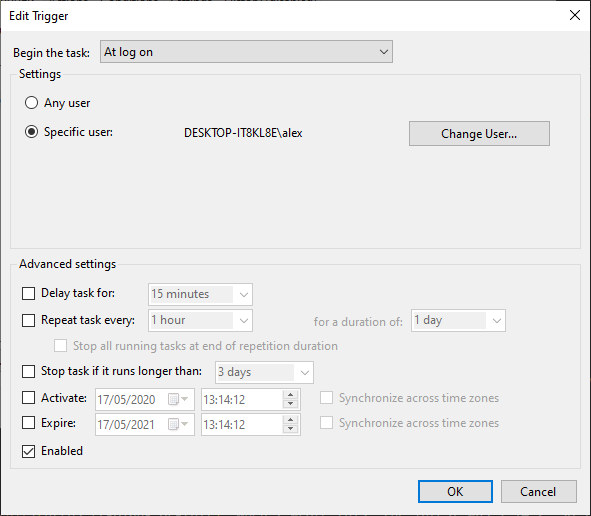 And a new Action, that should run `C:\Windows\System32\wsl.exe` with parameters `-d basic-learn sudo /bin/sh /usr/local/sbin/start_docker.sh` (remember to replace `basic-learn` with your own distribution name): 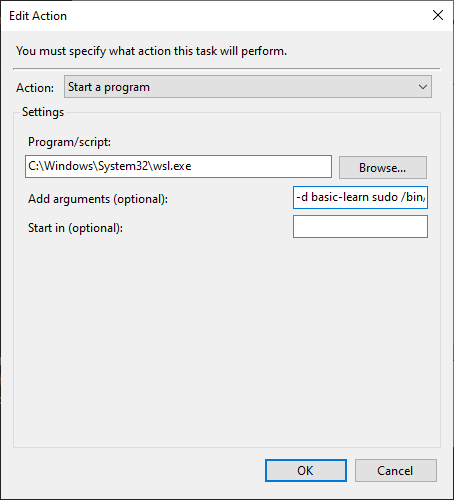 Finally, here are the Conditions and Settings tabs as I configured them: 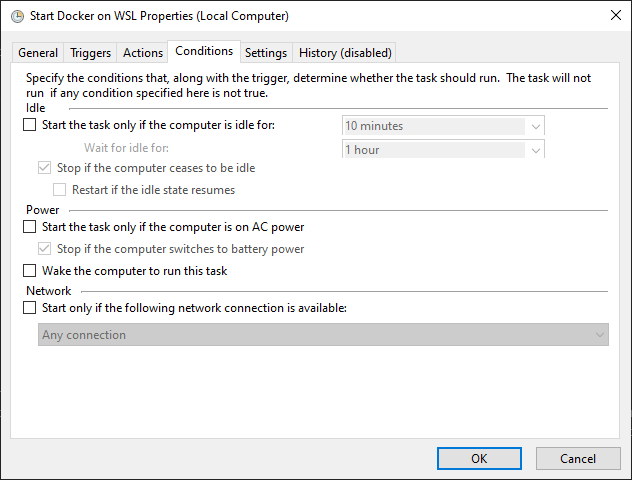 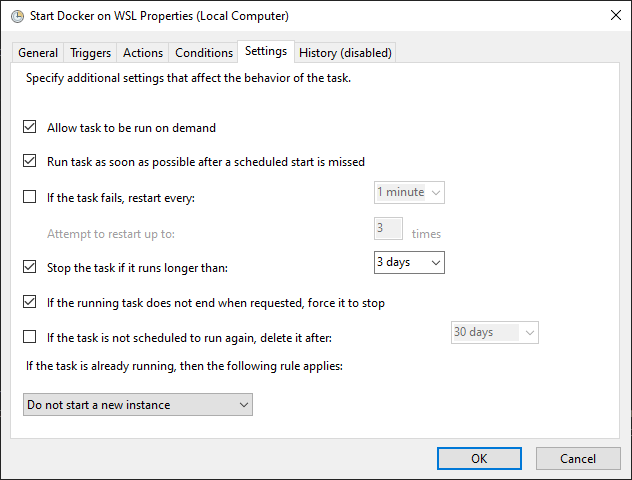 Save the task by clicking Ok and entering your user password. -
May 17, 2020 . 1 changed file with 1 addition and 1 deletion.There are no files selected for viewing
This file contains hidden or bidirectional Unicode text that may be interpreted or compiled differently than what appears below. To review, open the file in an editor that reveals hidden Unicode characters. Learn more about bidirectional Unicode charactersOriginal file line number Diff line number Diff line change @@ -78,7 +78,7 @@ So create a new task in the _Task Scheduler Library_ using the _Create task..._ Define the general properties: 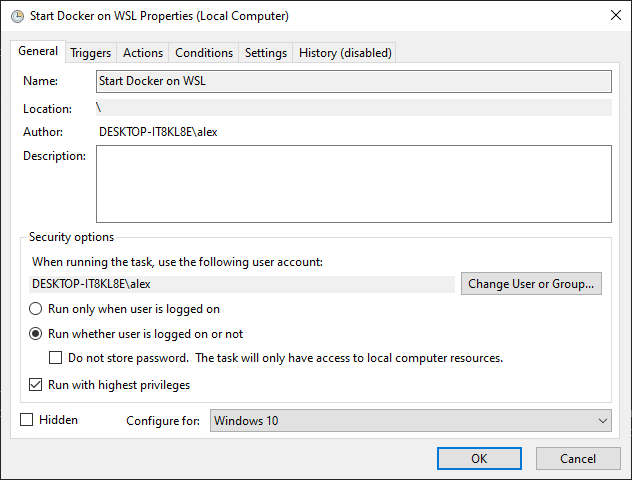 Add a new Trigger at log on: -
May 17, 2020 . 1 changed file with 28 additions and 2 deletions.There are no files selected for viewing
This file contains hidden or bidirectional Unicode text that may be interpreted or compiled differently than what appears below. To review, open the file in an editor that reveals hidden Unicode characters. Learn more about bidirectional Unicode charactersOriginal file line number Diff line number Diff line change @@ -54,10 +54,12 @@ Let's create a new script called `start_docker.sh` in `/usr/local/sbin` with the ```bash #!/usr/bin/env bash [ ! -f /sys/fs/cgroup/systemd ] && sudo mkdir /sys/fs/cgroup/systemd && sudo mount -t cgroup -o none,name=systemd cgroup /sys/fs/cgroup/systemd sudo service docker start ``` This will create and mount some special folder and start docker. Next, since we need to run this script without asking for a password, let's give our user that permission. Run `sudo visudo` and add the following line at the bottom (make sure to replace `alex` with whatever your current user is): ``` @@ -69,7 +71,31 @@ Finally, make the script executable: sudo chmod +x /usr/local/sbin/start_docker.sh ``` Now we need to tell Windows to execute this process when it boots. We can do that using the _Task Scheduler_ tool in Windows 10. What we want to do here is to create a task that runs every time we log in and that executes the `start_docker.sh` script from our WSL distribution using the following command: `wsl -d basic-learn sudo /bin/sh /usr/local/sbin/start_docker.sh`. `basic-learn` is the name of my distribution based on Ubuntu 18, you need to figure out your own using `wsl -l`. So create a new task in the _Task Scheduler Library_ using the _Create task..._ option. Define the general properties:  Add a new Trigger at log on: 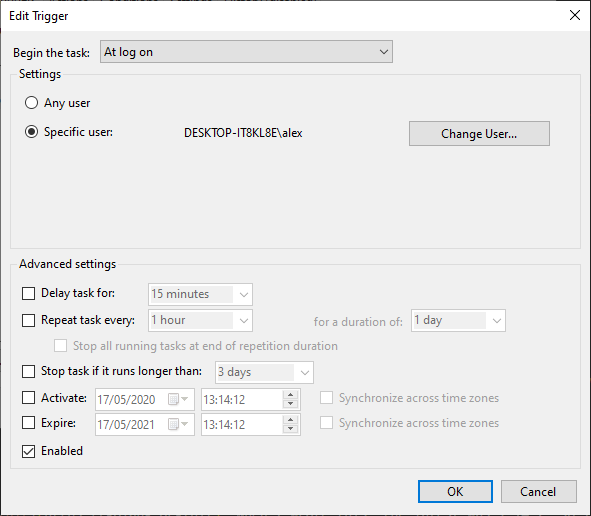 And a new Action, that should run `C:\Windows\System32\wsl.exe` with parameters `-d basic-learn sudo /bin/sh /usr/local/sbin/start_docker.sh` (remember to replace `basic-learn` with your own distribution name): 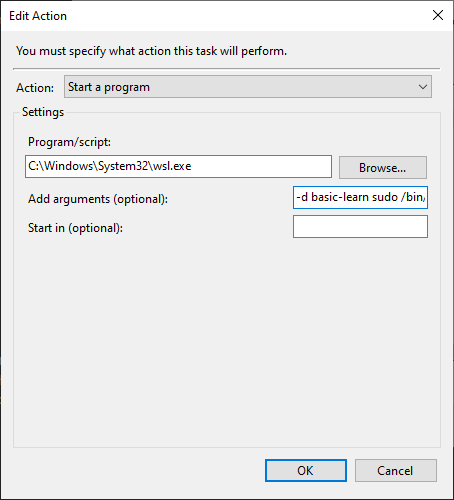 Finally, here are the Conditions and Settings tabs as I configured them: 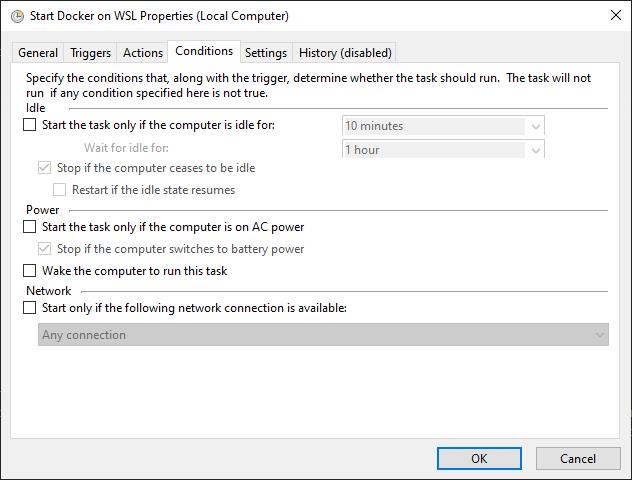 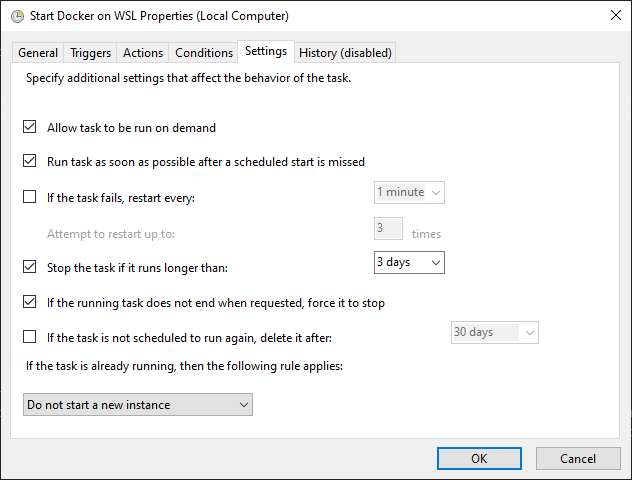 Save the task by clicking Ok and entering your user password. ## Install go -
May 17, 2020 . 1 changed file with 2 additions and 1 deletion.There are no files selected for viewing
This file contains hidden or bidirectional Unicode text that may be interpreted or compiled differently than what appears below. To review, open the file in an editor that reveals hidden Unicode characters. Learn more about bidirectional Unicode charactersOriginal file line number Diff line number Diff line change @@ -69,7 +69,8 @@ Finally, make the script executable: sudo chmod +x /usr/local/sbin/start_docker.sh ``` Now we need to tell Windows to execute this process when it boots. I suggest running the rest of the steps described under `Start Docker in an Elevated Prompt when Windows Boots` in this [blog post](https://medium.com/faun/docker-running-seamlessly-in-windows-subsystem-linux-6ef8412377aa#0056) on medium.com. ## Install go First we go to the go official download page to see what is the latest version: [https://golang.org/dl/](https://golang.org/dl/). When I wrote this, the latest was 1.14.2, so I will use that in the commands further. I will download and unpack go in `/usr/local`: -
May 17, 2020 . 1 changed file with 9 additions and 8 deletions.There are no files selected for viewing
This file contains hidden or bidirectional Unicode text that may be interpreted or compiled differently than what appears below. To review, open the file in an editor that reveals hidden Unicode characters. Learn more about bidirectional Unicode charactersOriginal file line number Diff line number Diff line change @@ -19,6 +19,8 @@ In order to get the most out of this video I recommend to: ## Install Docker CE for Linux Using the official instructions from [docker website](https://docs.docker.com/engine/install/ubuntu/): ```bash sudo apt-get update && sudo apt-get -y install jq \ jid \ @@ -44,31 +46,30 @@ sudo usermod -aG docker $(whoami) # reload group settings newgrp docker ``` In order to have Docker start whenever we start our WSL distro, we need to do a few more things (following the steps from this [blog post](https://medium.com/faun/docker-running-seamlessly-in-windows-subsystem-linux-6ef8412377aa)) Let's create a new script called `start_docker.sh` in `/usr/local/sbin` with the following content: ```bash #!/usr/bin/env bash sudo cgroupfs-mount sudo service docker start ``` Next, since we need to run this script without asking for a password, let's give our user that permission. Run `sudo visudo` and add the following line at the bottom (make sure to replace `alex` with whatever your current user is): ``` alex ALL=(ALL:ALL) NOPASSWD: /bin/sh /usr/local/sbin/start_docker.sh ``` Finally, make the script executable: ```bash sudo chmod +x /usr/local/sbin/start_docker.sh ``` Now we need to tell Windows to execute this process when it boots. ## Install go First we go to the go official download page to see what is the latest version: [https://golang.org/dl/](https://golang.org/dl/). When I wrote this, the latest was 1.14.2, so I will use that in the commands further. I will download and unpack go in `/usr/local`: -
May 17, 2020 . 1 changed file with 5 additions and 0 deletions.There are no files selected for viewing
This file contains hidden or bidirectional Unicode text that may be interpreted or compiled differently than what appears below. To review, open the file in an editor that reveals hidden Unicode characters. Learn more about bidirectional Unicode charactersOriginal file line number Diff line number Diff line change @@ -64,6 +64,11 @@ Next, since we need to run this script without asking for a password, let's give ``` alex ALL=(ALL:ALL) NOPASSWD: /usr/bin/zsh /usr/local/sbin/start_docker.sh ``` Finally, make the script executable: ```bash sudo chmod +x /usr/local/sbin/start_docker.sh ``` ## Install go First we go to the go official download page to see what is the latest version: [https://golang.org/dl/](https://golang.org/dl/). When I wrote this, the latest was 1.14.2, so I will use that in the commands further. I will download and unpack go in `/usr/local`: -
May 17, 2020 . 1 changed file with 1 addition and 1 deletion.There are no files selected for viewing
This file contains hidden or bidirectional Unicode text that may be interpreted or compiled differently than what appears below. To review, open the file in an editor that reveals hidden Unicode characters. Learn more about bidirectional Unicode charactersOriginal file line number Diff line number Diff line change @@ -59,7 +59,7 @@ sudo cgroupfs-mount sudo service docker start ``` Next, since we need to run this script without asking for a password, let's give our user that permission. Run `sudo visudo` and add the following line at the bottom (make sure to replace `alex` with whatever your current user is and `/usr/bin/zsh` with `/bin/sh` if you are using bash): ``` alex ALL=(ALL:ALL) NOPASSWD: /usr/bin/zsh /usr/local/sbin/start_docker.sh -
May 17, 2020 . 1 changed file with 1 addition and 1 deletion.There are no files selected for viewing
This file contains hidden or bidirectional Unicode text that may be interpreted or compiled differently than what appears below. To review, open the file in an editor that reveals hidden Unicode characters. Learn more about bidirectional Unicode charactersOriginal file line number Diff line number Diff line change @@ -50,7 +50,7 @@ sudo service docker start ``` In order to have Docker start whenever we start our WSL distro, we need to do a few more things. Let's create a new script called `start_docker.sh` in `/usr/local/sbin` with the following content (if you are not using zsh, replace `zsh` with whatever shell you are using, the default one is `bash`) ```bash #!/usr/bin/env zsh -
May 17, 2020 . 1 changed file with 4 additions and 2 deletions.There are no files selected for viewing
This file contains hidden or bidirectional Unicode text that may be interpreted or compiled differently than what appears below. To review, open the file in an editor that reveals hidden Unicode characters. Learn more about bidirectional Unicode charactersOriginal file line number Diff line number Diff line change @@ -59,9 +59,11 @@ sudo cgroupfs-mount sudo service docker start ``` Next, since we need to run this script without asking for a password, let's give our user that permission. Run `sudo visudo` and add the following line at the bottom (make sure to replace `alex` with whatever your current user is): ``` alex ALL=(ALL:ALL) NOPASSWD: /usr/bin/zsh /usr/local/sbin/start_docker.sh ``` ## Install go First we go to the go official download page to see what is the latest version: [https://golang.org/dl/](https://golang.org/dl/). When I wrote this, the latest was 1.14.2, so I will use that in the commands further. I will download and unpack go in `/usr/local`: -
May 17, 2020 . 1 changed file with 1 addition and 0 deletions.There are no files selected for viewing
This file contains hidden or bidirectional Unicode text that may be interpreted or compiled differently than what appears below. To review, open the file in an editor that reveals hidden Unicode characters. Learn more about bidirectional Unicode charactersOriginal file line number Diff line number Diff line change @@ -59,6 +59,7 @@ sudo cgroupfs-mount sudo service docker start ``` Next, since we need to run this script without asking for a password, let's give our user that permission. Run `sudo visudo` and add the following line at the bottom (make sure to replace `alex` with whatever your current user is) alex ALL=(ALL:ALL) NOPASSWD: /usr/bin/zsh /usr/local/sbin/start_docker.sh ## Install go -
May 17, 2020 . 1 changed file with 11 additions and 2 deletions.There are no files selected for viewing
This file contains hidden or bidirectional Unicode text that may be interpreted or compiled differently than what appears below. To review, open the file in an editor that reveals hidden Unicode characters. Learn more about bidirectional Unicode charactersOriginal file line number Diff line number Diff line change @@ -47,11 +47,20 @@ newgrp docker # start the docker service sudo service docker start ``` In order to have Docker start whenever we start our WSL distro, we need to do a few more things. Let's create a new script called `start_docker.sh` in `/usr/local/sbin` with the following content: ```bash #!/usr/bin/env zsh sudo cgroupfs-mount sudo service docker start ``` alex ALL=(ALL:ALL) NOPASSWD: /usr/bin/zsh /usr/local/sbin/start_docker.sh ## Install go First we go to the go official download page to see what is the latest version: [https://golang.org/dl/](https://golang.org/dl/). When I wrote this, the latest was 1.14.2, so I will use that in the commands further. I will download and unpack go in `/usr/local`: -
May 17, 2020 . 1 changed file with 3 additions and 0 deletions.There are no files selected for viewing
This file contains hidden or bidirectional Unicode text that may be interpreted or compiled differently than what appears below. To review, open the file in an editor that reveals hidden Unicode characters. Learn more about bidirectional Unicode charactersOriginal file line number Diff line number Diff line change @@ -47,6 +47,9 @@ newgrp docker # start the docker service sudo service docker start # configure docker service to start automatically at boot sudo systemctl enable docker ``` ## Install go -
May 17, 2020 . 1 changed file with 7 additions and 1 deletion.There are no files selected for viewing
This file contains hidden or bidirectional Unicode text that may be interpreted or compiled differently than what appears below. To review, open the file in an editor that reveals hidden Unicode characters. Learn more about bidirectional Unicode charactersOriginal file line number Diff line number Diff line change @@ -20,7 +20,13 @@ In order to get the most out of this video I recommend to: ## Install Docker CE for Linux ```bash sudo apt-get update && sudo apt-get -y install jq \ jid \ apt-transport-https \ ca-certificates \ gnupg-agent \ software-properties-common \ curl sudo curl -fsSL https://download.docker.com/linux/ubuntu/gpg | sudo apt-key add - -
May 17, 2020 . 1 changed file with 1 addition and 2 deletions.There are no files selected for viewing
This file contains hidden or bidirectional Unicode text that may be interpreted or compiled differently than what appears below. To review, open the file in an editor that reveals hidden Unicode characters. Learn more about bidirectional Unicode charactersOriginal file line number Diff line number Diff line change @@ -20,8 +20,7 @@ In order to get the most out of this video I recommend to: ## Install Docker CE for Linux ```bash sudo apt-get update && sudo apt-get -y install jq jid apt-transport-https ca-certificates gnupg-agent software-properties-common curl sudo curl -fsSL https://download.docker.com/linux/ubuntu/gpg | sudo apt-key add - -
May 17, 2020 . 1 changed file with 2 additions and 2 deletions.There are no files selected for viewing
This file contains hidden or bidirectional Unicode text that may be interpreted or compiled differently than what appears below. To review, open the file in an editor that reveals hidden Unicode characters. Learn more about bidirectional Unicode charactersOriginal file line number Diff line number Diff line change @@ -27,9 +27,9 @@ sudo curl -fsSL https://download.docker.com/linux/ubuntu/gpg | sudo apt-key add sudo apt-key fingerprint 0EBFCD88 sudo add-apt-repository \ "deb [arch=amd64] https://download.docker.com/linux/ubuntu \ $(lsb_release -cs) \ stable" sudo apt-get update && sudo apt-get install -y docker-ce docker-ce-cli containerd.io -
May 17, 2020 . 1 changed file with 2 additions and 4 deletions.There are no files selected for viewing
This file contains hidden or bidirectional Unicode text that may be interpreted or compiled differently than what appears below. To review, open the file in an editor that reveals hidden Unicode characters. Learn more about bidirectional Unicode charactersOriginal file line number Diff line number Diff line change @@ -23,8 +23,7 @@ In order to get the most out of this video I recommend to: sudo apt-get update && sudo apt-get -y install jq jid apt-transport-https ca-certificates gnupg-agent software-properties-common curl sudo curl -fsSL https://download.docker.com/linux/ubuntu/gpg | sudo apt-key add - sudo apt-key fingerprint 0EBFCD88 @@ -33,8 +32,7 @@ sudo add-apt-repository \ $(lsb_release -cs) \ stable" sudo apt-get update && sudo apt-get install -y docker-ce docker-ce-cli containerd.io # add your local user in the docker group, so no sudo is needed for running docker sudo usermod -aG docker $(whoami) -
May 17, 2020 . 1 changed file with 4 additions and 2 deletions.There are no files selected for viewing
This file contains hidden or bidirectional Unicode text that may be interpreted or compiled differently than what appears below. To review, open the file in an editor that reveals hidden Unicode characters. Learn more about bidirectional Unicode charactersOriginal file line number Diff line number Diff line change @@ -12,8 +12,10 @@ Contents: ## Recommendations In order to get the most out of this video I recommend to: * have at least a high-level understanding of what Kubernetes is - I have a [short video](https://learn.alexchiri.com/index.php/aiovg_videos/what-and-why-is-there-kubernetes/) that talks about that * have installed WSL2 and a WSL distribution of your choice - this is if you want to try out the things I am doing. I describe how to do that in [this video here](https://learn.alexchiri.com/index.php/aiovg_videos/z1-how-to-setup-wsl2-and-docker-for-wsl2-on-windows-10/), but please note that we will not need Docker for Windows with WSL2 backend, it is still useful to have around, but for playing with kind I (now) recommend installing Docker for Linux inside the distribution ## Install Docker CE for Linux -
May 17, 2020 . 1 changed file with 5 additions and 0 deletions.There are no files selected for viewing
This file contains hidden or bidirectional Unicode text that may be interpreted or compiled differently than what appears below. To review, open the file in an editor that reveals hidden Unicode characters. Learn more about bidirectional Unicode charactersOriginal file line number Diff line number Diff line change @@ -2,13 +2,18 @@ Contents: * [Recommendations](#recommendations) * [Install Docker CE for Linux](#install-docker-ce-for-linux) * [Install go](#install-go) * [Install kind](#install-kind) * [Install kubectl, the CLI we will use to talk with our cluster](#install-kubectl-the-cli-we-will-use-to-talk-with-our-cluster) * [Install kubectx and kubens](#install-kubectx-and-kubens) * [Let's create a new kind cluster](#lets-create-a-new-kind-cluster) ## Recommendations In order to get the most out of this video I recommend to * have at least a high-level understanding of what ## Install Docker CE for Linux -
May 17, 2020 . 1 changed file with 8 additions and 5 deletions.There are no files selected for viewing
This file contains hidden or bidirectional Unicode text that may be interpreted or compiled differently than what appears below. To review, open the file in an editor that reveals hidden Unicode characters. Learn more about bidirectional Unicode charactersOriginal file line number Diff line number Diff line change @@ -1,11 +1,14 @@ # Get started with Kubernetes in Docker (kind) in WSL2 Contents: * [Install Docker CE for Linux](#install-docker-ce-for-linux) * [Install go](#install-go) * [Install kind](#install-kind) * [Install kubectl, the CLI we will use to talk with our cluster](#install-kubectl-the-cli-we-will-use-to-talk-with-our-cluster) * [Install kubectx and kubens](#install-kubectx-and-kubens) * [Let's create a new kind cluster](#lets-create-a-new-kind-cluster) ## Install Docker CE for Linux -
May 17, 2020 . 1 changed file with 15 additions and 6 deletions.There are no files selected for viewing
This file contains hidden or bidirectional Unicode text that may be interpreted or compiled differently than what appears below. To review, open the file in an editor that reveals hidden Unicode characters. Learn more about bidirectional Unicode charactersOriginal file line number Diff line number Diff line change @@ -1,4 +1,13 @@ # Get started with Kubernetes in Docker (kind) in WSL2 Agenda: 1. [Install Docker CE for Linux](#example) 2. [Install go](#example2) 3. [Install kind](#third-example) 4. [Install kubectl, the CLI we will use to talk with our cluster](#fourth-examplehttpwwwfourthexamplecom) ## Install Docker CE for Linux ```bash sudo apt-get update && sudo apt-get -y install jq jid apt-transport-https @@ -27,7 +36,7 @@ newgrp docker sudo service docker start ``` ## Install go First we go to the go official download page to see what is the latest version: [https://golang.org/dl/](https://golang.org/dl/). When I wrote this, the latest was 1.14.2, so I will use that in the commands further. I will download and unpack go in `/usr/local`: @@ -41,7 +50,7 @@ sudo tar -xzvf ./go1.14.2.linux-amd64.tar.gz -C /usr/local In order to be able to use easily use go, we need to add its binary location into our PATH. So make sure to edit your shell configuration and add `/usr/local/go/bin` to your PATH variable and reload the config in the current session. ## Install kind Check the official page: [https://kind.sigs.k8s.io/](https://kind.sigs.k8s.io/) @@ -51,7 +60,7 @@ GO111MODULE="on" go get sigs.k8s.io/kind\@v0.8.0 Update PATH to include the kind binary in the PATH: ~/go/bin ## Install kubectl, the CLI we will use to talk with our cluster There is a lot of information and instructions on the official kubectl page: [https://kubernetes.io/docs/tasks/tools/install-kubectl/](https://kubernetes.io/docs/tasks/tools/install-kubectl/). @@ -69,7 +78,7 @@ alias k=kubectl complete -F __start_kubectl k ``` ## Install kubectx and kubens `kubectx` allows you to easily change between clusters (or contexts), pretty useful when working with multiple Kubernetes clusters. @@ -92,7 +101,7 @@ ln -s /usr/local/kubectx/completion/kubectx.zsh ~/.oh-my-zsh/completions/_kubect ln -s /usr/local/kubectx/completion/kubens.zsh ~/.oh-my-zsh/completions/_kubens.zsh ``` ## Let's create a new kind cluster Simply run `kind create cluster` and it will create a new one-node cluster. If you get a funky error in the middle about `cgroups: cannot find cgroup mount destination: unknown.` then run the following commands and retry: -
May 15, 2020 . 1 changed file with 7 additions and 7 deletions.There are no files selected for viewing
This file contains hidden or bidirectional Unicode text that may be interpreted or compiled differently than what appears below. To review, open the file in an editor that reveals hidden Unicode characters. Learn more about bidirectional Unicode charactersOriginal file line number Diff line number Diff line change @@ -4,21 +4,21 @@ sudo apt-get update && sudo apt-get -y install jq jid apt-transport-https ca-certificates gnupg-agent software-properties-common curl sudo curl -fsSL https://download.docker.com/linux/ubuntu/gpg | sudo apt-key add - sudo apt-key fingerprint 0EBFCD88 sudo add-apt-repository \ "deb [arch=amd64] https://download.docker.com/linux/ubuntu \ $(lsb_release -cs) \ stable" sudo apt-get update && sudo apt-get install -y docker-ce docker-ce-cli containerd.io # add your local user in the docker group, so no sudo is needed for running docker sudo usermod -aG docker $(whoami) # reload group settings newgrp docker @@ -29,7 +29,7 @@ sudo service docker start # Install go First we go to the go official download page to see what is the latest version: [https://golang.org/dl/](https://golang.org/dl/). When I wrote this, the latest was 1.14.2, so I will use that in the commands further. I will download and unpack go in `/usr/local`: ```bash cd /tmp -
May 15, 2020 . 1 changed file with 1 addition and 3 deletions.There are no files selected for viewing
This file contains hidden or bidirectional Unicode text that may be interpreted or compiled differently than what appears below. To review, open the file in an editor that reveals hidden Unicode characters. Learn more about bidirectional Unicode charactersOriginal file line number Diff line number Diff line change @@ -99,6 +99,4 @@ Simply run `kind create cluster` and it will create a new one-node cluster. If y ```bash sudo mkdir /sys/fs/cgroup/systemd sudo mount -t cgroup -o none,name=systemd cgroup /sys/fs/cgroup/systemd ``` -
May 15, 2020 .There are no files selected for viewing
This file contains hidden or bidirectional Unicode text that may be interpreted or compiled differently than what appears below. To review, open the file in an editor that reveals hidden Unicode characters. Learn more about bidirectional Unicode charactersOriginal file line number Diff line number Diff line change @@ -0,0 +1,104 @@ # Install Docker CE for Linux ```bash sudo apt-get update && sudo apt-get -y install jq jid apt-transport-https ca-certificates gnupg-agent software-properties-common curl sudo curl -fsSL https://download.docker.com/linux/ubuntu/gpg \| sudo apt-key add - sudo apt-key fingerprint 0EBFCD88 sudo add-apt-repository \\ "deb [arch=amd64] https://download.docker.com/linux/ubuntu \\ \$(lsb_release -cs) \\ stable" sudo apt-get update && sudo apt-get install -y docker-ce docker-ce-cli containerd.io # add your local user in the docker group, so no sudo is needed for running docker sudo usermod -aG docker \$(whoami) # reload group settings newgrp docker # start the docker service sudo service docker start ``` # Install go First we go to the go official download page to see what is the latest version: [https://golang.org/dl/](https://golang.org/dl/). When I wrote this, the latest was 1.14.2, so I will use that in the commands further. I will download and unpack go in /usr/local. ```bash cd /tmp curl -LO https://dl.google.com/go/go1.14.2.linux-amd64.tar.gz sudo tar -xzvf ./go1.14.2.linux-amd64.tar.gz -C /usr/local ``` In order to be able to use easily use go, we need to add its binary location into our PATH. So make sure to edit your shell configuration and add `/usr/local/go/bin` to your PATH variable and reload the config in the current session. # Install kind Check the official page: [https://kind.sigs.k8s.io/](https://kind.sigs.k8s.io/) ```bash GO111MODULE="on" go get sigs.k8s.io/kind\@v0.8.0 ``` Update PATH to include the kind binary in the PATH: ~/go/bin # Install kubectl, the CLI we will use to talk with our cluster There is a lot of information and instructions on the official kubectl page: [https://kubernetes.io/docs/tasks/tools/install-kubectl/](https://kubernetes.io/docs/tasks/tools/install-kubectl/). ```bash curl -LO https://storage.googleapis.com/kubernetes-release/release/`curl -s https://storage.googleapis.com/kubernetes-release/release/stable.txt`/bin/linux/amd64/kubectl chmod +x ./kubectl sudo mv ./kubectl /usr/local/bin/kubectl ``` For autocomplete and alias in zsh (check official page for instructions for other shells) add the following into your `.zshrc` file: ```bash source <(kubectl completion zsh) alias k=kubectl complete -F __start_kubectl k ``` # Install kubectx and kubens `kubectx` allows you to easily change between clusters (or contexts), pretty useful when working with multiple Kubernetes clusters. `kubens` allows you to re-define the current default Kubernetes namespace so you don't have to specify always what namespace your commands should be executed towards. Official homepage: [https://github.com/ahmetb/kubectx](https://github.com/ahmetb/kubectx) ```bash sudo git clone https://github.com/ahmetb/kubectx /usr/local/kubectx sudo ln -s /usr/local/kubectx/kubectx /usr/local/bin/kubectx sudo ln -s /usr/local/kubectx/kubens /usr/local/bin/kubens # configure autocompletion in oh-my-zsh (check github page for other shells) mkdir -p ~/.oh-my-zsh/completions chmod -R 755 ~/.oh-my-zsh/completions ln -s /usr/local/kubectx/completion/kubectx.zsh ~/.oh-my-zsh/completions/_kubectx.zsh ln -s /usr/local/kubectx/completion/kubens.zsh ~/.oh-my-zsh/completions/_kubens.zsh ``` # Let's create a new kind cluster Simply run `kind create cluster` and it will create a new one-node cluster. If you get a funky error in the middle about `cgroups: cannot find cgroup mount destination: unknown.` then run the following commands and retry: ```bash sudo mkdir /sys/fs/cgroup/systemd sudo mount -t cgroup -o none,name=systemd cgroup /sys/fs/cgroup/systemd ``` # Finally, let’s test that we can connect to the node in the cluster.