
This set of documentation takes an assumption that Poshgit was installed using Chocolatey, which installs the powershell Modules in a different directory than the expected defaults.
-
Navigate to the Poshgit Install Directory
- [Chocolatey] C:\tools\Poshgit\dahlbyk-posh-git-9d624ca\
- [Local User] %UserProfile%\Documents\WindowsPowerShell\Modules\Poshgit
- [System] %windir%\System32\WindowsPowerShell\Modules\Poshgit
-
Right-Click on
GitPrompt.ps1and select Edit -
Between line 5 and 39 you will find all of the colour settings
DefaultForegroundColor = $Host.UI.RawUI.ForegroundColor BeforeText = ' [' BeforeForegroundColor = [ConsoleColor]::Yellow BeforeBackgroundColor = $Host.UI.RawUI.BackgroundColor DelimText = ' |' DelimForegroundColor = [ConsoleColor]::Yellow DelimBackgroundColor = $Host.UI.RawUI.BackgroundColor AfterText = ']' AfterForegroundColor = [ConsoleColor]::Yellow AfterBackgroundColor = $Host.UI.RawUI.BackgroundColor BranchForegroundColor = [ConsoleColor]::Cyan BranchBackgroundColor = $Host.UI.RawUI.BackgroundColor BranchAheadForegroundColor = [ConsoleColor]::Green BranchAheadBackgroundColor = $Host.UI.RawUI.BackgroundColor BranchBehindForegroundColor = [ConsoleColor]::Red BranchBehindBackgroundColor = $Host.UI.RawUI.BackgroundColor BranchBehindAndAheadForegroundColor = [ConsoleColor]::Yellow BranchBehindAndAheadBackgroundColor = $Host.UI.RawUI.BackgroundColor BeforeIndexText = "" BeforeIndexForegroundColor= [ConsoleColor]::DarkGreen BeforeIndexBackgroundColor= $Host.UI.RawUI.BackgroundColor IndexForegroundColor = [ConsoleColor]::DarkGreen IndexBackgroundColor = $Host.UI.RawUI.BackgroundColor WorkingForegroundColor = [ConsoleColor]::DarkRed WorkingBackgroundColor = $Host.UI.RawUI.BackgroundColor UntrackedText = ' !' UntrackedForegroundColor = [ConsoleColor]::DarkRed UntrackedBackgroundColor = $Host.UI.RawUI.BackgroundColor -
Here us a description of each of the foreground colours:
Setting Name Description Default Colour BeforeForegroundColor The first character added to the commandline when a `.git` directory is detected Yellow DelimForegroundColor Yellow AfterForegroundColor BranchForegroundColor BranchAheadForegroundColor BranchBehindForegroundColor BranchBehindAndAheadForegroundColor BeforeIndexForegroundColor IndexForegroundColor WorkingForegroundColor UntrackedForegroundColor


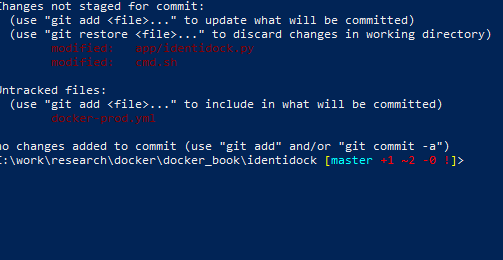


Should add a paragraph about when are changes applied.