Lets talk about bash.
Notes were taken from edx.org of LFS101x Introduction to Linux.
Date: Sun Sep 28 00:30:48 EDT 2014
The preferred method to shut down or reboot the system is to use the shutdown command. This sends a warning message and then prevents further users from logging in. The init process will then control shutting down or rebooting the system. It is important to always shut down properly; failure to do so can result in damage to the system and/or loss of data.
The halt and poweroff commands issue shutdown -h to halt the system; reboot issues shutdown -r and causes the machine to reboot instead of just shutting down. Both rebooting and shutting down from the command line requires superuser (root) access.
When administering a multiuser system, you have the option of notifying all users prior to shutdown as in:
$ sudo shutdown -h 10:00 "Shutting down for scheduled maintenance."
Click the image to view an enlarged version.
Depending on the specifics of your particular distribution's policy, programs and software packages can be installed in various directories. In general, executable programs should live in the /bin, /usr/bin,/sbin,/usr/sbin directories or under /opt.
One way to locate programs is to employ the which utility. For example, to find out exactly where the diff program resides on the filesystem:
$ which diff
If which does not find the program, whereis is a good alternative because it looks for packages in a broader range of system directories:
$ whereis diff
ln can be used to create hard links and (with the -s option) soft links, also known as symbolic links or symlinks. These two kinds of links are very useful in UNIX-based operating systems. The advantages of symbolic links are discusssed on the following screen.
Suppose that file1 already exists. A hard link, called file2, is created with the command:
$ ln file1 file2
Note that two files now appear to exist. However, a closer inspection of the file listing shows that this is not quite true.
$ ls -li file1 file2
The -i option to ls prints out in the first column the inode number, which is a unique quantity for each file object. This field is the same for both of these files; what is really going on here is that it is only one file but it has more than one name associated with it, as is indicated by the 3 that appears in the ls output. Thus, there already was another object linked to file1 before the command was executed.
Symbolic (or Soft) links are created with the -s option as in:
$ ln -s file1 file4
$ ls -li file1 file4
Notice file4 no longer appears to be a regular file, and it clearly points to file1 and has a different inode number.
Symbolic links take no extra space on the filesystem (unless their names are very long). They are extremely convenient as they can easily be modified to point to different places. An easy way to create a shortcut from your home directory to long pathnames is to create a symbolic link.
Unlike hard links, soft links can point to objects even on different filesystems (or partitions) which may or may not be currently available or even exist. In the case where the link does not point to a currently available or existing object, you obtain a dangling link.
Hard links are very useful and they save space, but you have to be careful with their use, sometimes in subtle ways. For one thing if you remove either file1 or file2 in the example on the previous screen, the inode object (and the remaining file name) will remain, which might be undesirable as it may lead to subtle errors later if you recreate a file of that name.
If you edit one of the files, exactly what happens depends on your editor; most editors including vi and gedit will retain the link by default but it is possible that modifying one of the names may break the link and result in the creation of two objects.
Extension:
[What is the difference between hardlink and softlink?] (http://www.geekride.com/hard-link-vs-soft-link/)
[What is the difference between a hard link and a symbolic link?] (http://askubuntu.com/questions/108771/what-is-the-difference-between-a-hard-link-and-a-symbolic-link)
The cd command remembers where you were last, and lets you get back there with cd -. For remembering more than just the last directory visited, use pushd to change the directory instead of cd; this pushes your starting directory onto a list. Using popd will then send you back to those directories, walking in reverse order (the most recent directory will be the first one retrieved with popd). The list of directories is displayed with the dirs command.
Functions in bash
function_name () {
    command...
}
For example, the following function is named display:
display () {
    echo "This is a sample function"
}
Compiled Applications: rm, ls, df, vi, gzip
Builtin bash commands: cd, pwd, echo, read, logout, printf, let, unlimit
Command Substitution
At times, you may need to substitute the result of a command as a portion of another command. It can be done in two ways:
By enclosing the inner command with backticks (\`)
By enclosing the inner command in $()
No matter the method, the innermost command will be executed in a newly launched shell environment, and the standard output of the shell will be inserted where the command substitution was done.
Virtually any command can be executed this way. Both of these methods enable command substitution; however, the $() method allows command nesting. New scripts should always use this more modern method. For example:
$ cd /lib/modules/$(uname -r)/
In the above example, the output of the command "uname –r" becomes the argument for the cd command.
Almost all scripts use variables containing a value, which can be used anywhere in the script. These variables can either be user or system defined. Many applications use such environment variables (covered in the "User Environment" chapter) for supplying inputs, validation, and controlling behaviour.
Some examples of standard environment variables are HOME, PATH, and HOST. When referenced, environment variables must be prefixed with the $ symbol as in $HOME. You can view and set the value of environment variables. For example, the following command displays the value stored in the PATH variable:
$ echo $PATH
However, no prefix is required when setting or modifying the variable value. For example, the following command sets the value of the MYCOLOR variable to blue:
$ MYCOLOR=blue
You can get a list of environment variables with the env, set, or printenv commands.
By default, the variables created within a script are available only to the subsequent steps of that script. Any child processes (sub-shells) do not have automatic access to the values of these variables. To make them available to child processes, they must be promoted to environment variables using the export statement as in:
export VAR=value
or
VAR=value ; export VAR
While child processes are allowed to modify the value of exported variables, the parent will not see any changes; exported variables are not shared, but only copied.
Users often need to pass parameter values to a script, such as a filename, date, etc. Scripts will take different paths or arrive at different values according to the parameters (command arguments) that are passed to them. These values can be text or numbers as in:
$ ./script.sh /tmp $ ./script.sh 100 200
Within a script, the parameter or an argument is represented with a $ and a number. The table lists some of these parameters.
| Parameter | Meaning |
|---|---|
| $0 | Script name |
| $1 | First parameter |
| $2, $3, etc. | Second, third parameter, etc. |
| $* | All parameters |
| $# | Number of arguments |
Using your favorite text editor, create a new script file named script3.sh with the following contents:
#!/bin/bash
echo The name of this program is: $0
echo The first argument passed from the command line is: $1
echo The second argument passed from the command line is: $2
echo The third argument passed from the command line is: $3
echo All of the arguments passed from the command line are : $*
echo
echo All done with $0
Make the script executable with chmod +x. Run the script giving it three arguments as in: script3.sh one two three, and the script is processed as follows:
$0 prints the script name: script3.sh
$1 prints the first parameter: one
$2 prints the second parameter: two
$3 prints the third parameter: three
$* prints all parameters: one two three
The final statement becomes: All done with script3.sh
Most operating systems accept input from the keyboard and display the output on the terminal. However, in shell scripting you can send the output to a file. The process of diverting the output to a file is called output redirection.
The > character is used to write output to a file. For example, the following command sends the output of free to the file /tmp/free.out:
$ free > /tmp/free.out
To check the contents of the /tmp/free.out file, at the command prompt type cat /tmp/free.out.
Two > characters (>>) will append output to a file if it exists, and act just like > if the file does not already exist.
Input redirection example
Just as the output can be redirected to a file, the input of a command can be read from a file. The process of reading input from a file is called input redirection and uses the < character. If you create a file called script8.sh with the following contents:
#!/bin/bash
echo “Line count”
wc -l < /temp/free.out
and then execute it with chmod +x script8.sh ; ./script8.sh, it will count the number of lines from the /temp/free.out file and display the results.
Let’s go deeper and find out how to work with strings in scripts.
A string variable contains a sequence of text characters. It can include letters, numbers, symbols and punctuation marks. Some examples: abcde, 123, abcde 123, abcde-123, &acbde=%123
String operators include those that do comparison, sorting, and finding the length. The following table demonstrates the use of some basic string operators.
| Operator | Meaning |
|---|---|
[string1> string2 ] |
Compares the sorting order of string1 and string2. |
[string1 == string2] |
Compares the characters in string1 with the characters in string2. |
myLen1=${#mystring1} |
Saves the length of string1 in the variable myLen1. |
At times, you may not need to compare or use an entire string. To extract the first character of a string we can specify:
${string:0:1} Here 0 is the offset in the string (i.e., which character to begin from) where the extraction needs to start and 1 is the number of characters to be extracted.
To extract all characters in a string after a dot (.), use the following expression: ${string#*.}
Boolean expressions evaluate to either TRUE or FALSE, and results are obtained using the various Boolean operators listed in the table.
| Operator | Operation | Meaning |
|---|---|---|
&& |
AND | The action will be performed only if both the conditions evaluate to true. |
| ` | ` | |
! |
NOT |
Note that if you have multiple conditions strung together with the && operator processing stops as soon as a condition evaluates to false. For example if you have A && B && C and A is true but B is false, C will never be executed.
Likewise if you are using the || operator, processing stops as soon as anything is true. For example if you have A || B || C and A is false and B is true, you will also never execute C.
Boolean expressions return either TRUE or FALSE. We can use such expressions when working with multiple data types including strings or numbers as well as with files. For example, to check if a file exists, use the following conditional test:
[-e <filename>]
Similarly, to check if the value of number1 is greater than the value of number2, use the following conditional test:
[$number1 -gt $number2]
The operator -gt returns TRUE if number1 is greater than number2.
The case statement is used in scenarios where the actual value of a variable can lead to different execution paths. case statements are often used to handle command-line options.
Below are some of the advantages of using the case statement:
It is easier to read and write.
It is a good alternative to nested, multi-level if-then-else-fi code blocks.
It enables you to compare a variable against several values at once.
It reduces the complexity of a program.
Structure of the case Statement
Here is the basic structure of the case statement:
case expression in
   pattern1) execute commands;;
   pattern2) execute commands;;
   pattern3) execute commands;;
   pattern4) execute commands;;
   * )       execute some default commands or nothing ;;
esac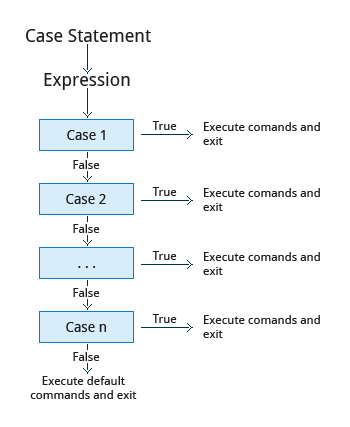
By using looping constructs, you can execute one or more lines of code repetitively. Usually you do this until a conditional test returns either true or false as is required.
Three type of loops are often used in most programming languages:
- for
- while
- until
All these loops are easily used for repeating a set of statements until the exit condition is true.
The 'for' Loop
The for loop operates on each element of a list of items. The syntax for the for loop is:
for variable-name in list
do
    execute one iteration for each item in the
            list until the list is finished
done
In this case, variable-name and list are substituted by you as appropriate (see examples). As with other looping constructs, the statements that are repeated should be enclosed by do and done.
The while loop repeats a set of statements as long as the control command returns true. The syntax is:
while condition is true
do
    Commands for execution
    ----
done
The set of commands that need to be repeated should be enclosed between do and done. You can use any command or operator as the condition. Often it is enclosed within square brackets ([]).
The until loop repeats a set of statements as long as the control command is false. Thus it is essentially the opposite of the while loop. The syntax is:
until condition is false
do
    Commands for execution
    ----
done
Similar to the while loop, the set of commands that need to be repeated should be enclosed between do and done. You can use any command or operator as the condition.
While working with scripts and commands, you may run into errors. These may be due to an error in the script, such as incorrect syntax, or other ingredients such as a missing file or insufficient permission to do an operation. These errors may be reported with a specific error code, but often just yield incorrect or confusing output. So how do you go about identifying and fixing an error?
Debugging helps you troubleshoot and resolve such errors, and is one of the most important tasks a system administrator performs.
More About Script Debugging
Before fixing an error (or bug), it is vital to know its source.
In bash shell scripting, you can run a script in debug mode by doing bash –x ./script_file. Debug mode helps identify the error because:
It traces and prefixes each command with the + character. It displays each command before executing it. It can debug only selected parts of a script (if desired) with:
set -x    # turns on debugging
...
set +x    # turns off debugging
In UNIX/Linux, all programs that run are given three open file streams when they are started as listed in the table:
| File stream | Description | File Descriptor |
|---|---|---|
| stdin | Standard Input, by default the keyboard/terminal for programs run from the command line | 0 |
| stdout | SStandard output, by default the screen for programs run from the command line | 1 |
| stderr | SStandard error, where output error messages are shown or saved | 2 |
Using redirection we can save the stdout and stderr output streams to one file or two separate files for later analysis after a program or command is executed
On the left screen is a buggy shell script. On the right screen the buggy script is executed and the errors are redirected to the file "error.txt". Using "cat" to display the contents of "error.txt" shows the errors of executing the buggy shell script (presumably for further debugging).
Consider a situation where you want to retrieve 100 records from a file with 10,000 records. You will need a place to store the extracted information, perhaps in a temporary file, while you do further processing on it.
Temporary files (and directories) are meant to store data for a short time. Usually one arranges it so that these files disappear when the program using them terminates. While you can also use touch to create a temporary file, this may make it easy for hackers to gain access to your data.
The best practice is to create random and unpredictable filenames for temporary storage. One way to do this is with the mktemp utility as in these examples:
The XXXXXXXX is replaced by the mktemp utility with random characters to ensure the name of the temporary file cannot be easily predicted and is only known within your program.
| Command | Usage |
|---|---|
TEMP=$(mktemp /tmp/tempfile.XXXXXXXX) |
To create a temporary file |
TEMPDIR=$(mktemp -d /tmp/tempdir.XXXXXXXX) |
To create a temporary directory |
First, the danger: If someone creates a symbolic link from a known temporary file used by root to the /etc/passwd file, like this:
$ ln -s /etc/passwd /tmp/tempfile
There could be a big problem if a script run by root has a line in like this:
echo $VAR > /tmp/tempfile
The password file will be overwritten by the temporary file contents.
To prevent such a situation make sure you randomize your temporary filenames by replacing the above line with the following lines:
TEMP=$(mktemp /tmp/tempfile.XXXXXXXX)
echo $VAR > $TEMP
Certain commands like find will produce voluminous amounts of output which can overwhelm the console. To avoid this, we can redirect the large output to a special file (a device node) called /dev/null. This file is also called the bit bucket or black hole.
It discards all data that gets written to it and never returns a failure on write operations. Using the proper redirection operators, it can make the output disappear from commands that would normally generate output to stdout and/or stderr:
$ find / > /dev/null
In the above command, the entire standard output stream is ignored, but any errors will still appear on the console.
It is often useful to generate random numbers and other random data when performing tasks such as:
Performing security-related tasks.
Reinitializing storage devices.
Erasing and/or obscuring existing data.
Generating meaningless data to be used for tests.
Such random numbers can be generated by using the $RANDOM environment variable, which is derived from the Linux kernel’s built-in random number generator, or by the OpenSSL library function, which uses the FIPS140 algorithm to generate random numbers for encryption
To read more about FIPS140, see http://en.wikipedia.org/wiki/FIPS_140-2
The example shows you how to easily use the environmental variable method to generate random numbers.
Some servers have hardware random number generators that take as input different types of noise signals, such as thermal noise and photoelectric effect. A transducer converts this noise into an electric signal, which is again converted into a digital number by an A-D converter. This number is considered random. However, most common computers do not contain such specialized hardware and instead rely on events created during booting to create the raw data needed.
Regardless of which of these two sources is used, the system maintains a so-called entropy pool of these digital numbers/random bits. Random numbers are created from this entropy pool.
The Linux kernel offers the /dev/random and /dev/urandom device nodes which draw on the entropy pool to provide random numbers which are drawn from the estimated number of bits of noise in the entropy pool.
/dev/random is used where very high quality randomness is required, such as one-time pad or key generation, but it is relatively slow to provide vaules. /dev/urandom is faster and suitable (good enough) for most cryptographic purposes.
Furthermore, when the entropy pool is empty, /dev/random is blocked and does not generate any number until additional environmental noise (network traffic, mouse movement, etc.) is gathered whereas /dev/urandom reuses the internal pool to produce more pseudo-random bits.
A process is simply an instance of one or more related tasks (threads) executing on your computer. It is not the same as a program or a command; a single program may actually start several processes simultaneously. Some processes are independent of each other and others are related. A failure of one process may or may not affect the others running on the system.
Processes use many system resources, such as memory, CPU (central processing unit) cycles, and peripheral devices such as printers and displays. The operating system (especially the kernel) is responsible for allocating a proper share of these resources to each process and ensuring overall optimum utilization.
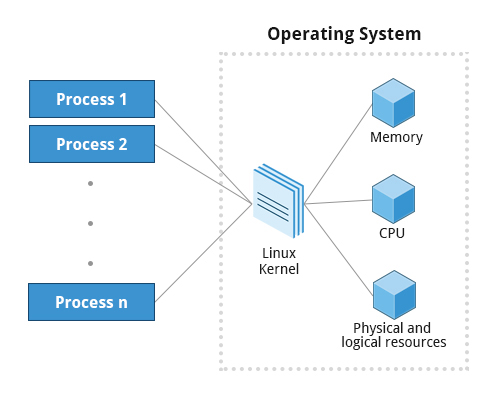
A terminal window (one kind of command shell), is a process that runs as long as needed. It allows users to execute programs and access resources in an interactive environment. You can also run programs in the background, which means they become detached from the shell.
Processes can be of different types according to the task being performed. Here are some different process types along with their descriptions and examples.
| Process Type | Description | Example |
|---|---|---|
| Interactive Processes | Need to be started by a user, either at a command line or through a graphical interface such as an icon or a menu selection. | bash, firefox, top |
| Batch Processes | Automatic processes which are scheduled from and then disconnected from the terminal. These tasks are queued and work on a FIFO (First In, First Out) basis. | updatedb |
| Daemons | Server processes that run continuously. Many are launched during system startup and then wait for a user or system request indicating that their service is required. | httpd, xinetd, sshd |
| Threads | Lightweight processes. These are tasks that run under the umbrella of a main process, sharing memory and other resources, but are scheduled and run by the system on an individual basis. An individual thread can end without terminating the whole process and a process can create new threads at any time. Many non-trivial programs are multi-threaded. | gnome-terminal, firefox |
| Kernel Threads | Kernel tasks that users neither start nor terminate and have little control over. These may perform actions like moving a thread from one CPU to another, or making sure input/output operations to disk are completed. | kswapd0, migration, ksoftirqd |
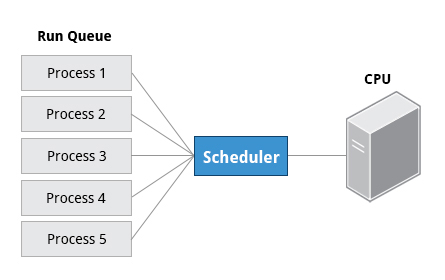
When a process is in a so-called running state, it means it is either currently executing instructions on a CPU, or is waiting for a share (or time slice) so it can run. A critical kernel routine called the scheduler constantly shifts processes in and out of the CPU, sharing time according to relative priority, how much time is needed and how much has already been granted to a task. All processes in this state reside on what is called a run queue and on a computer with multiple CPUs, or cores, there is a run queue on each.
However, sometimes processes go into what is called a sleep state, generally when they are waiting for something to happen before they can resume, perhaps for the user to type something. In this condition a process is sitting in a wait queue.
There are some other less frequent process states, especially when a process is terminating. Sometimes a child process completes but its parent process has not asked about its state. Amusingly such a process is said to be in a zombie state; it is not really alive but still shows up in the system's list of processes.
At any given time there are always multiple processes being executed. The operating system keeps track of them by assigning each a unique process ID (PID) number. The PID is used to track process state, cpu usage, memory use, precisely where resources are located in memory, and other characteristics.
New PIDs are usually assigned in ascending order as processes are born. Thus PID 1 denotes the init process (initialization process), and succeeding processes are gradually assigned higher numbers.
The table explains the PID types and their descriptions:
| ID Type | Description |
|---|---|
| Process ID (PID) | Unique Process ID number |
| Parent Process ID (PPID) | Process (Parent) that started this process |
| Thread ID (TID) | Thread ID number. This is the same as the PID for single-threaded processes. For a multi-threaded process, each thread shares the same PID but has a unique TID. |
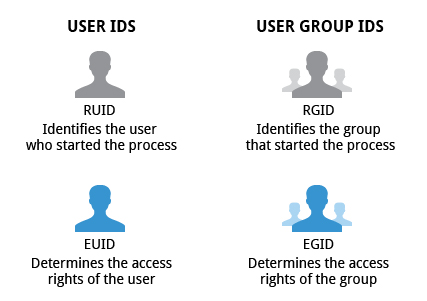
Many users can access a system simultaneously, and each user can run multiple processes. The operating system identifies the user who starts the process by the Real User ID (RUID) assigned to the user.
The user who determines the access rights for the users is identified by the Effective UID (EUID). The EUID may or may not be the same as the RUID.
Users can be categorized into various groups. Each group is identified by the Real Group ID, or RGID. The access rights of the group are determined by the Effective Group ID, or EGID. Each user can be a member of one or more groups.
Most of the time we ignore these details and just talk about the User ID (UID).
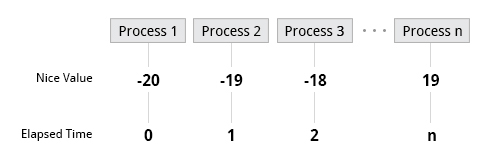
At any given time, many processes are running (i.e., in the run queue) on the system. However, a CPU can actually accommodate only one task at a time, just like a car can have only one driver at a time. Some processes are more important than others so Linux allows you to set and manipulate process priority. Higher priority processes are granted more time on the CPU.
The priority for a process can be set by specifying a nice value, or niceness, for the process. The lower the nice value, the higher the priority. Low values are assigned to important processes, while high values are assigned to processes that can wait longer. A process with a high nice value simply allows other processes to be executed first. In Linux, a nice value of -20 represents the highest priority and 19 represents the lowest. (This does sound kind of backwards, but this convention, the nicer the process, the lower the priority, goes back to the earliest days of UNIX.)
You can also assign a so-called real-time priority to time-sensitive tasks, such as controlling machines through a computer or collecting incoming data. This is just a very high priority and is not to be confused with what is called hard real time which is conceptually different, and has more to do with making sure a job gets completed within a very well-defined time window.
PS: High priority jobs have lower nice value and low priority jobs have higher nice value.